
Setting up e-mail filters
EditMurena Workspace supports use of email filters that automatically organize your incoming emails.
Tip: Before you follow the steps below, decide which filters you wish to setup and create new folders for it.
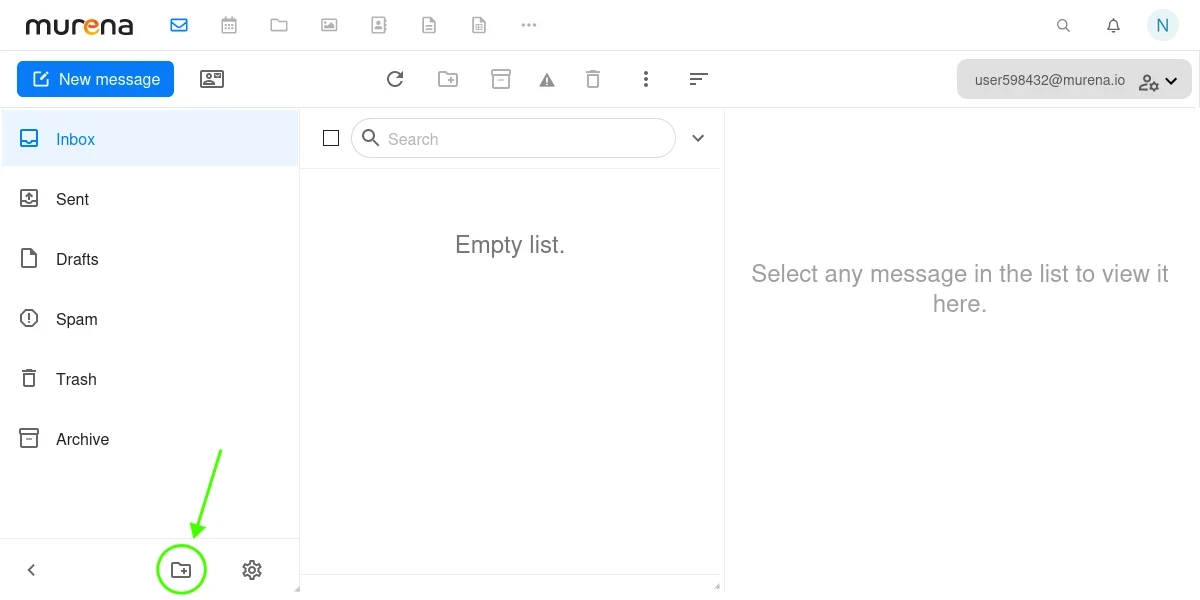
Setup an email filter on Murena Workspace
Visit this link to the Filters section or navigate to
Murena dashboard->Email->Settings(gear icon at bottom) ->filters.If asked, login with your Murena Workspace account e-mail and password.
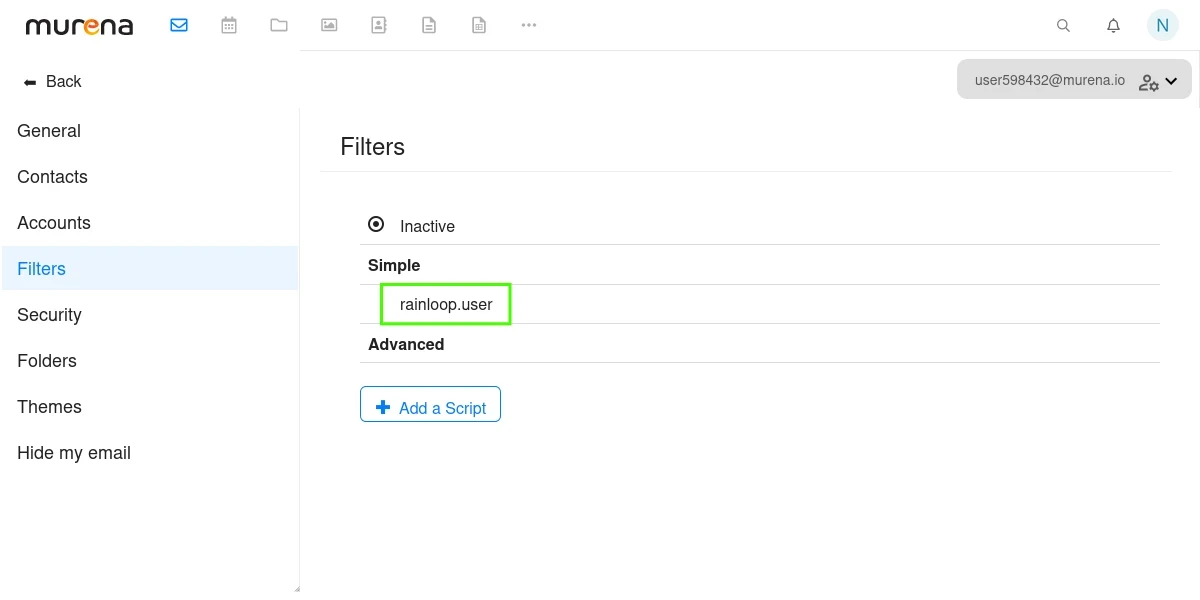
Click on
rainloop.useras shown in the screenshot below.
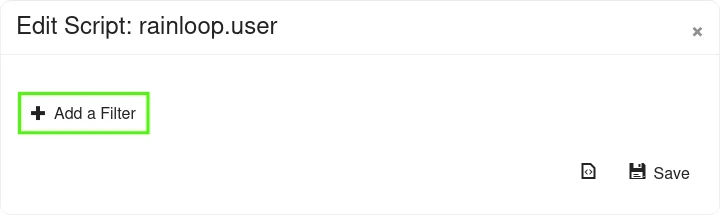
- Click on
+ Add a Filter
- Next, setup the filter as per your requirements. For example, the configuration of filter in the screenshot below will move all incoming emails from
mybankemail@example.comto the folder namedBanking.
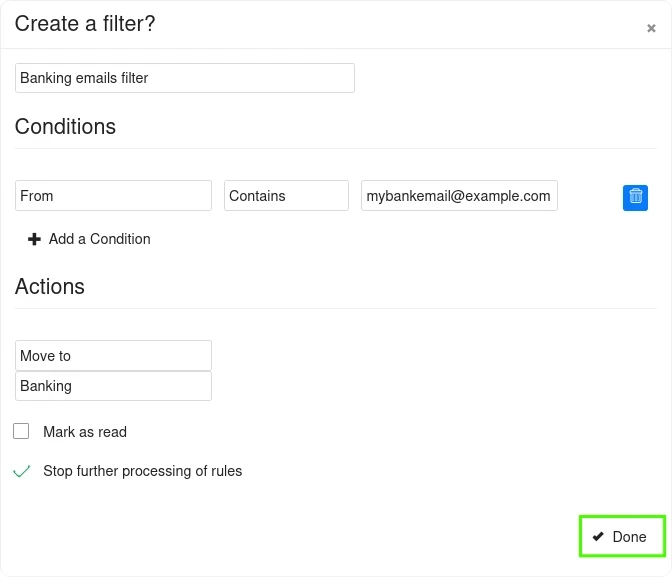
- Don’t forget to click on
Doneand thenSave, otherwise your filter will not be saved.
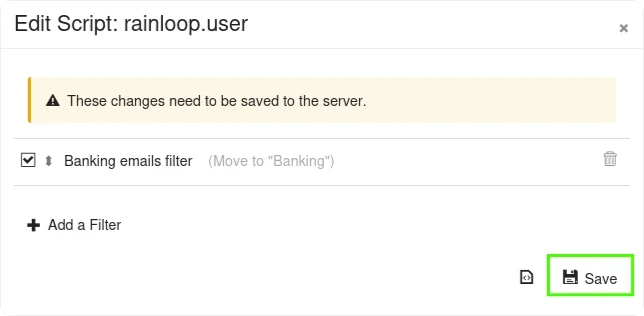
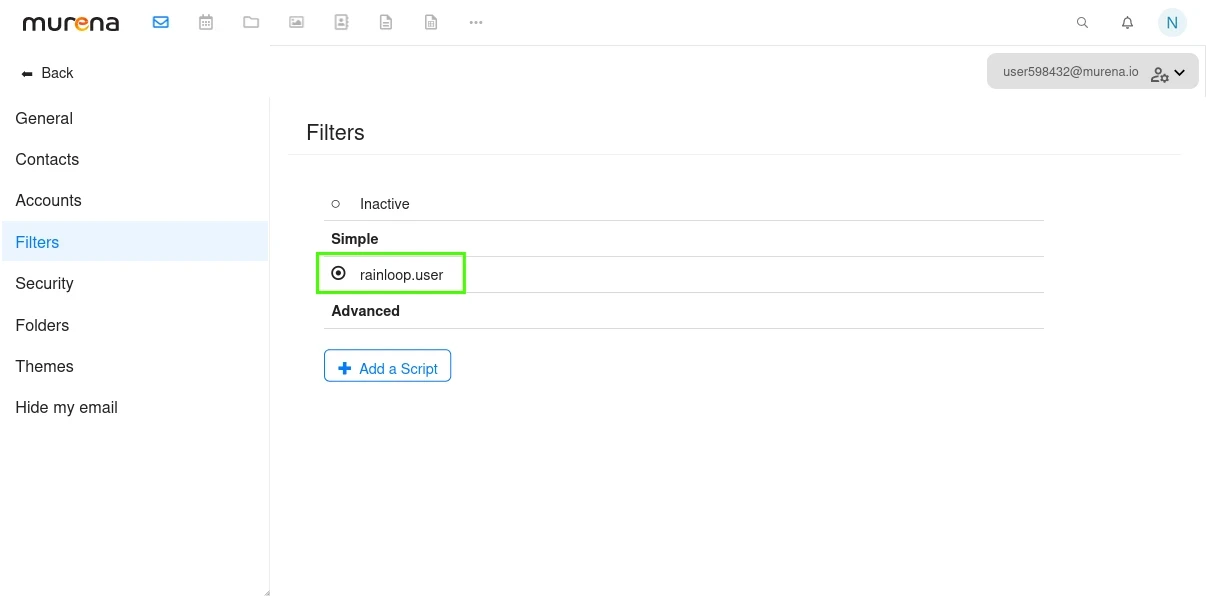
- Finally, activate your filter by selecting the
Dotbesiderainloop.useroption.
Use email filters with Hide my email
Visit this link to view your Hide my email alias email address.
If asked, login with your Murena Workspace account username and password.
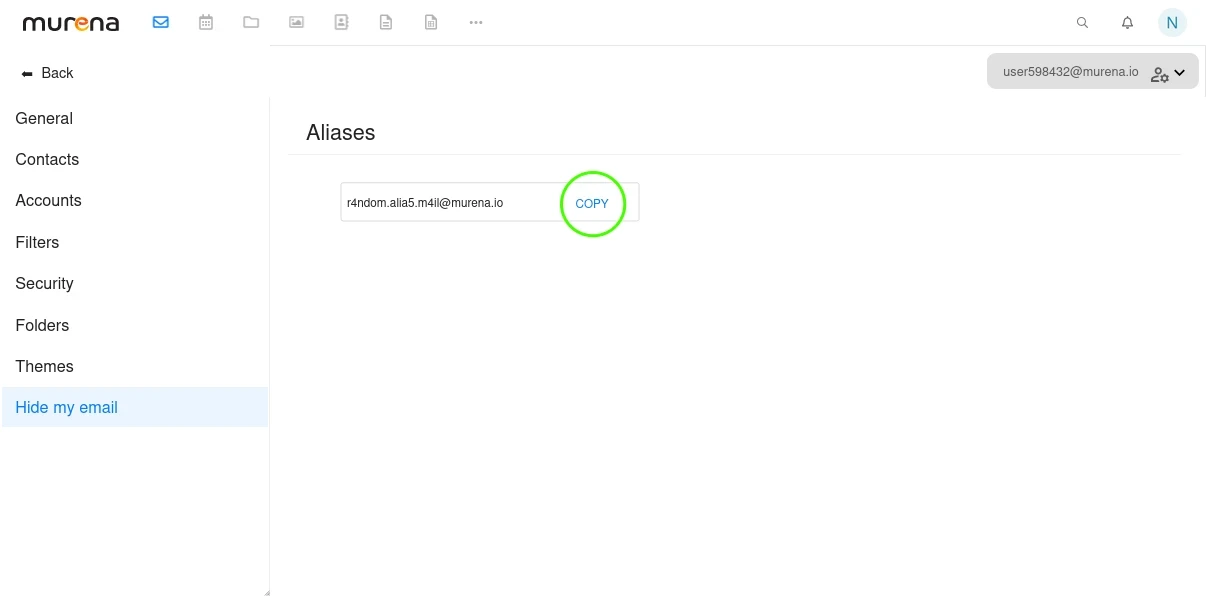
Click on
COPYto copy your Hide my email address.
- Use the copied email in the
Conditionssection when setting up an filter.
For example, the configuration of filter in the screenshot below will move all incoming emails from r4ndom.alia5.m4il@murena.io to the folder named Alias emails.
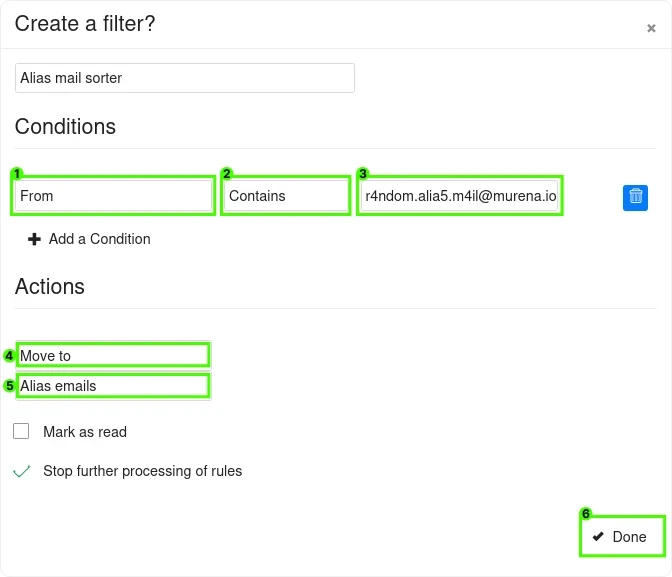
- Don’t forget to click on
Done, thenSave, and then select theDotbesiderainloop.useroption, otherwise your filter will not be saved.