
Migrate your data from Google Cloud to Murena Workspace
Overview
Use this guide if you want to move data from your Google account into Murena Workspace.
The current migration flow supports several types of Google data including contacts, calendars, Drive files, and Gmail-specific steps such as email import, forwarding setup, auto-reply, and service review.
Prerequisites
- A working Murena Workspace account
- Access to the Google account you want to migrate
- Enough Murena Workspace storage if you plan to import Gmail emails
- A desktop or laptop computer if you plan to configure Gmail forwarding manually
Connect your Google account
You can open the Murena migration page directly here: Murena migration page.
- Sign in to your Murena Workspace account.
- Open
Settings, then open theData migrationtab.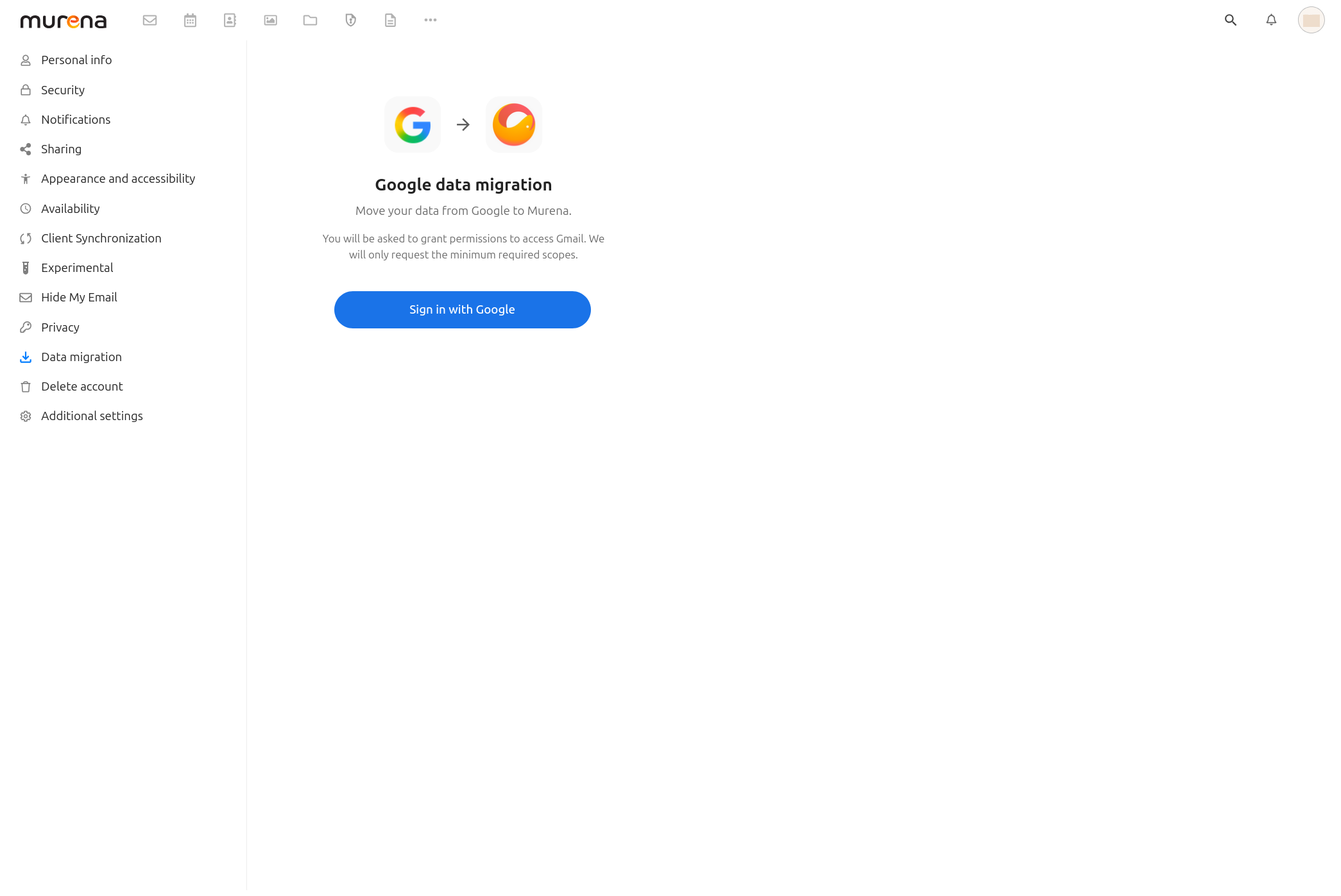
- Use the
Sign in with Googlebutton to log in to your Google account.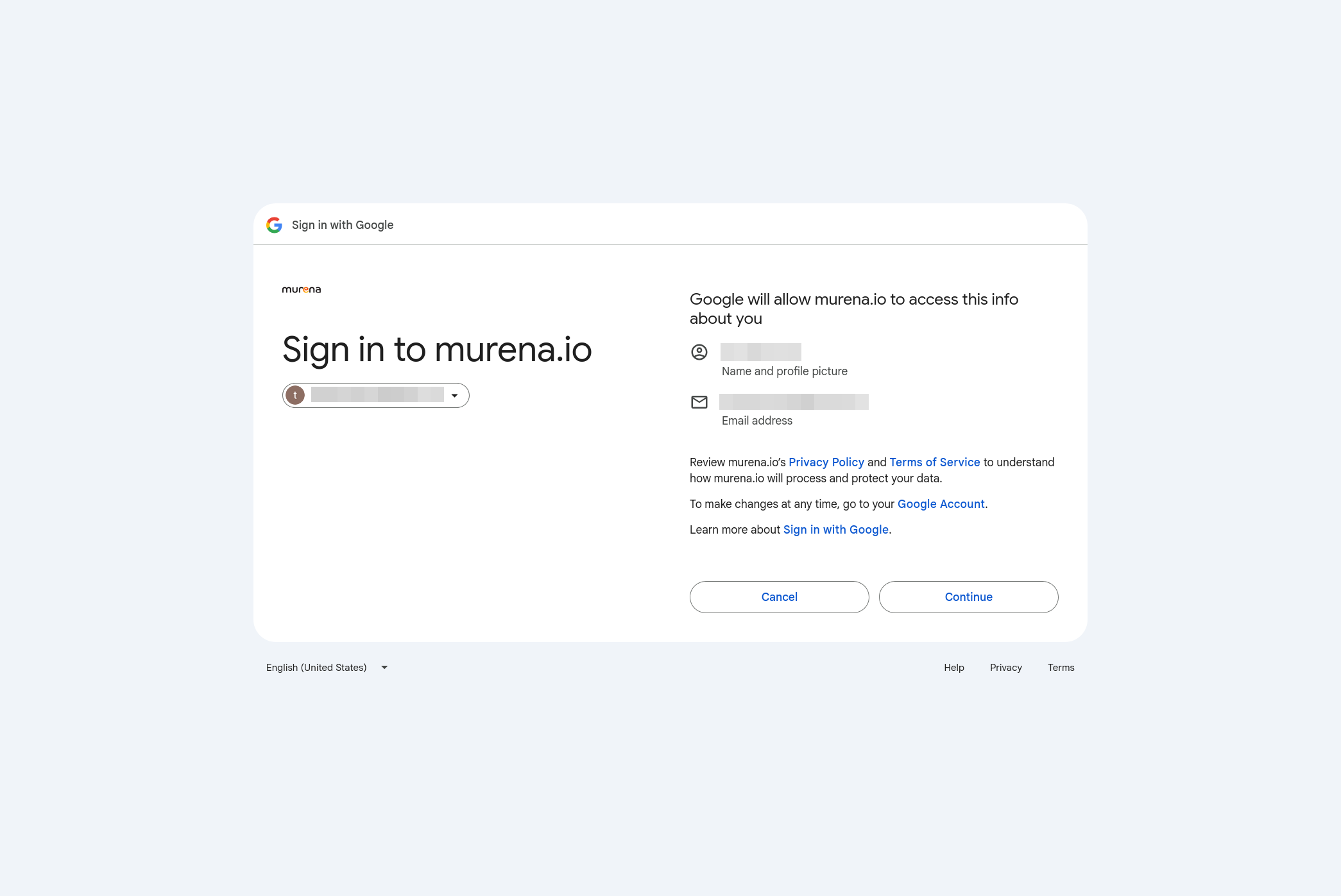
- Select the Google account you want to use and continue.
- Google will then ask you to approve access to the supported Google services.
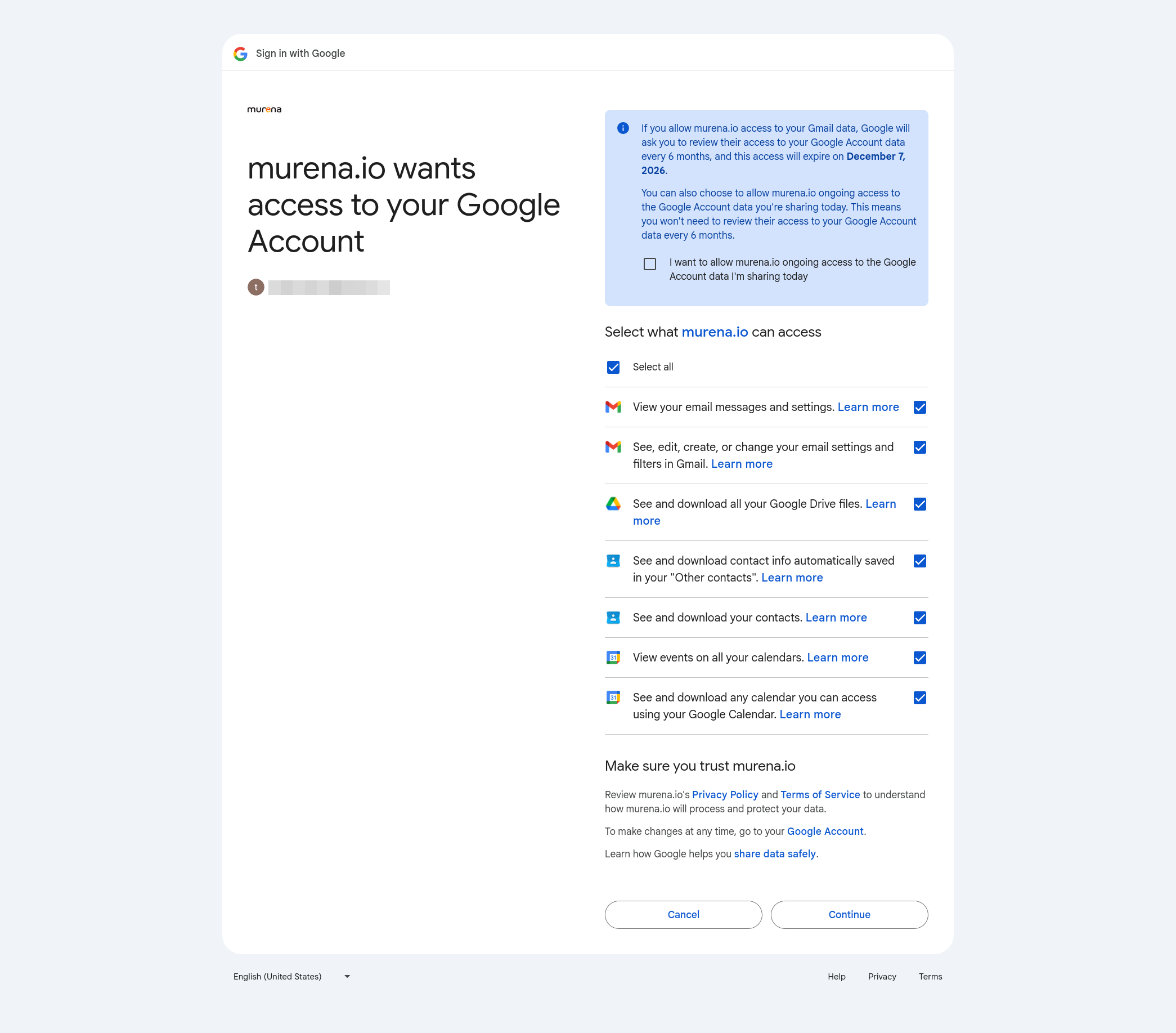
- Review the requested access and continue only if you are comfortable granting these permissions.
Choose what to import and check available storage
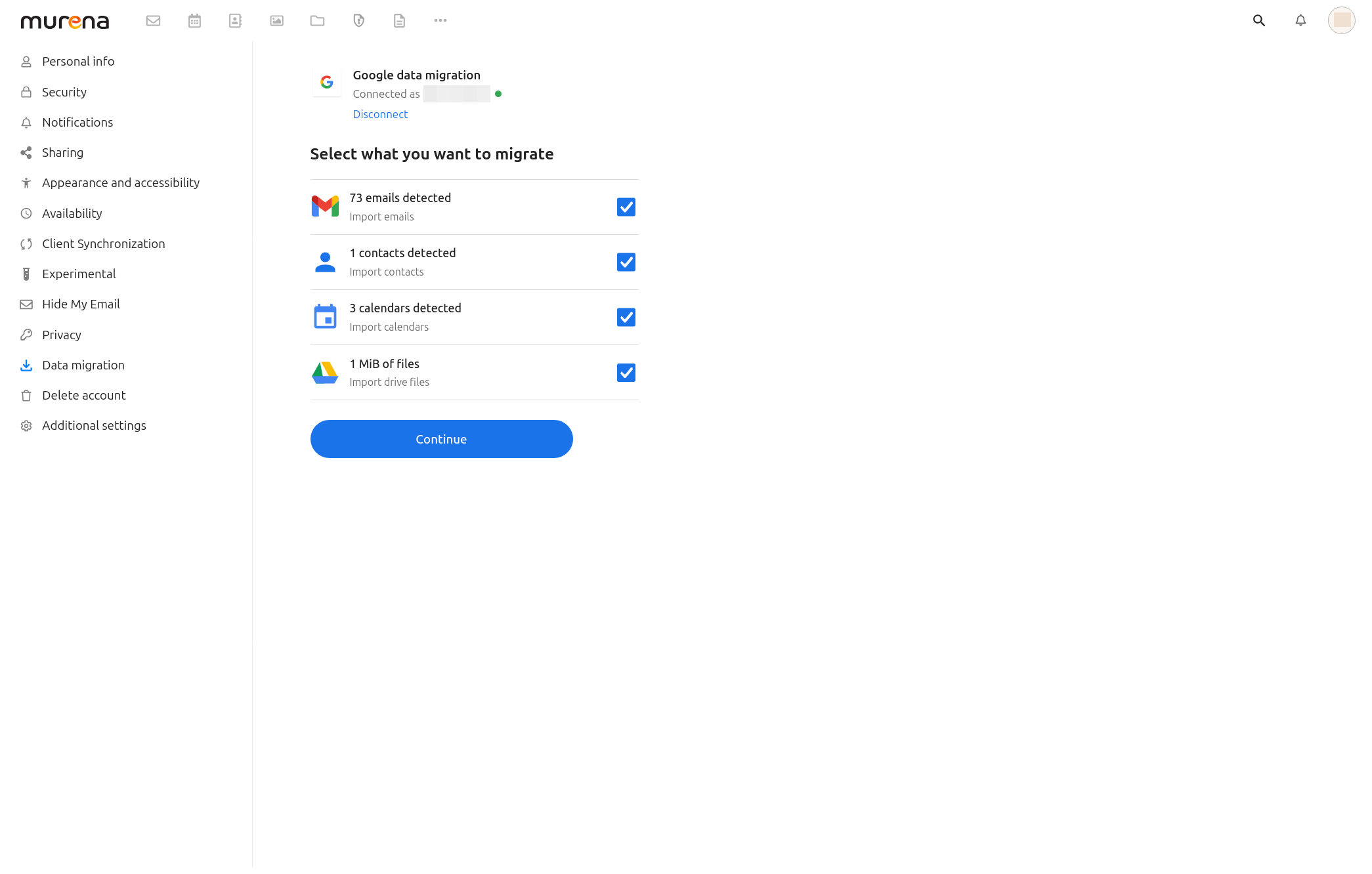
After Google authentication, Murena shows the data types it detected in your Google account.
- Review the detected items and the counts shown for each data type.
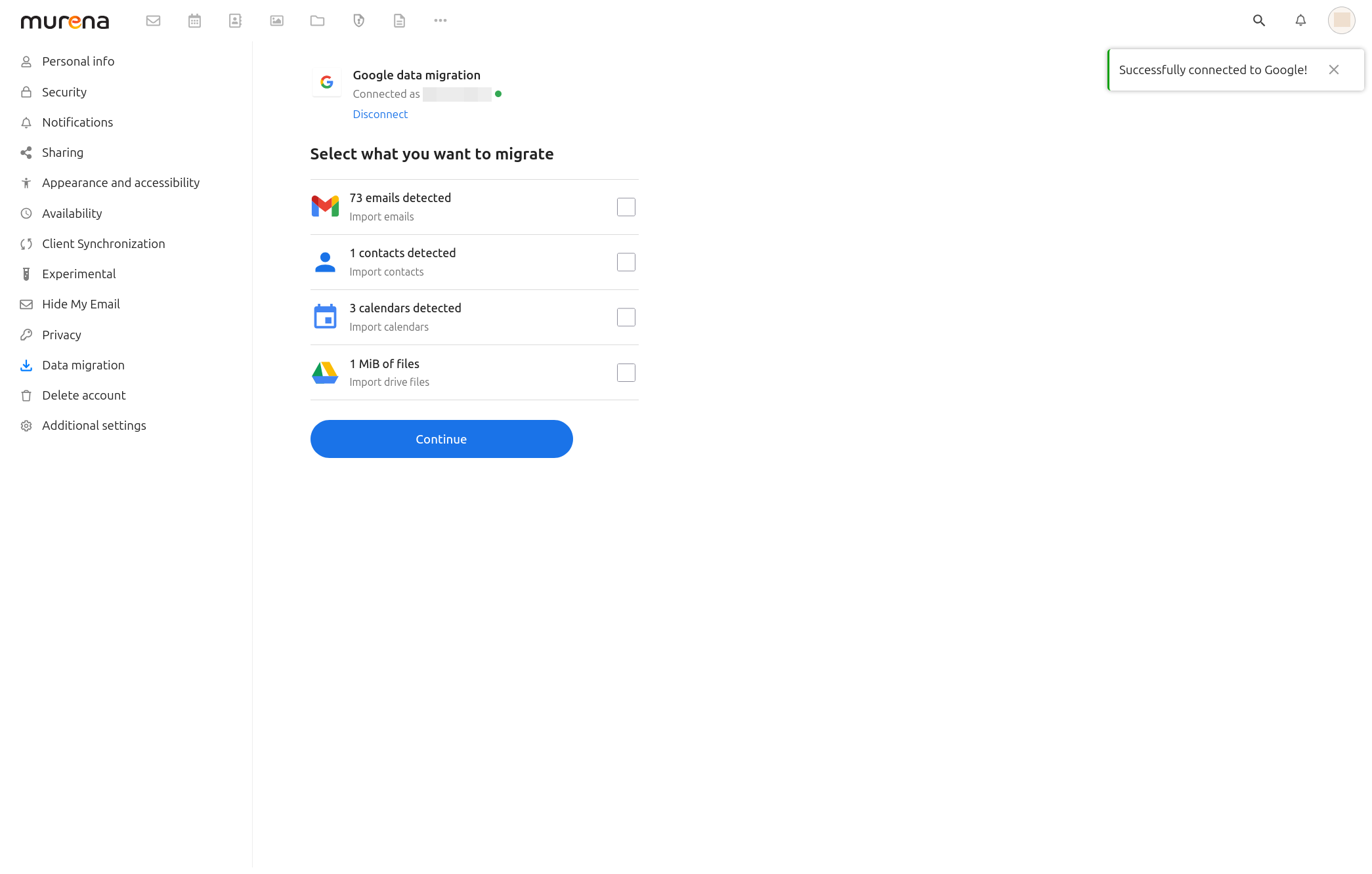
- Tick the items you want to migrate, then continue.
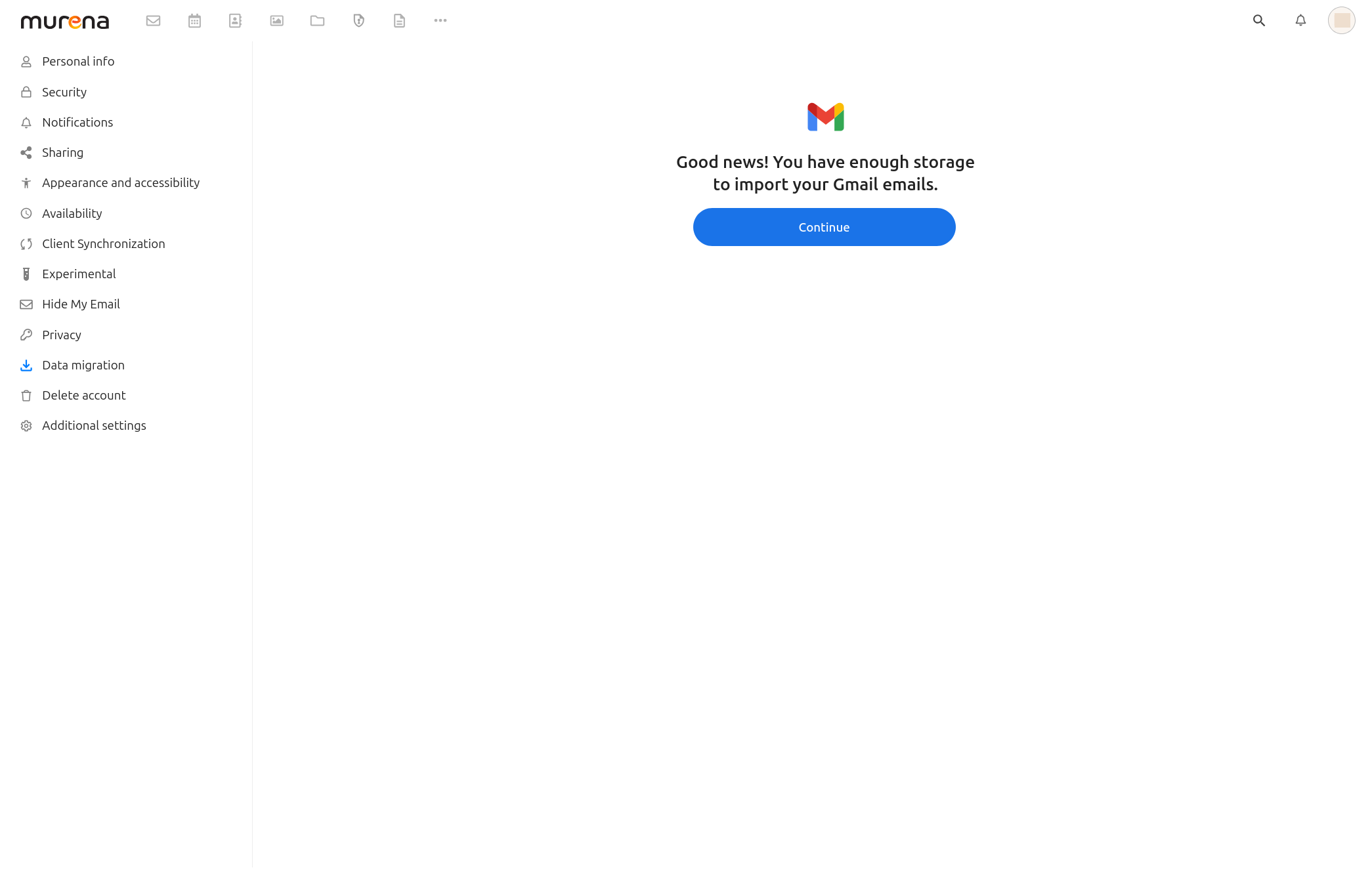
Before the migration continues, the process checks whether your Murena Workspace account has enough free storage for the selected import.
Gmail-specific steps
Gmail email import
Before the migration starts, you can review the Gmail-specific settings.
Email forwarding: automatically forward new Gmail messages to your Murena inbox.Forwarding scope: define the scope of the emails you want to forward to your Murena inbox (e.g. only emails which reaches the Inbox).Auto-reply: set a message to let senders know you now use a different email address.Detect services linked to your Gmail: identify important accounts that use your Gmail address.
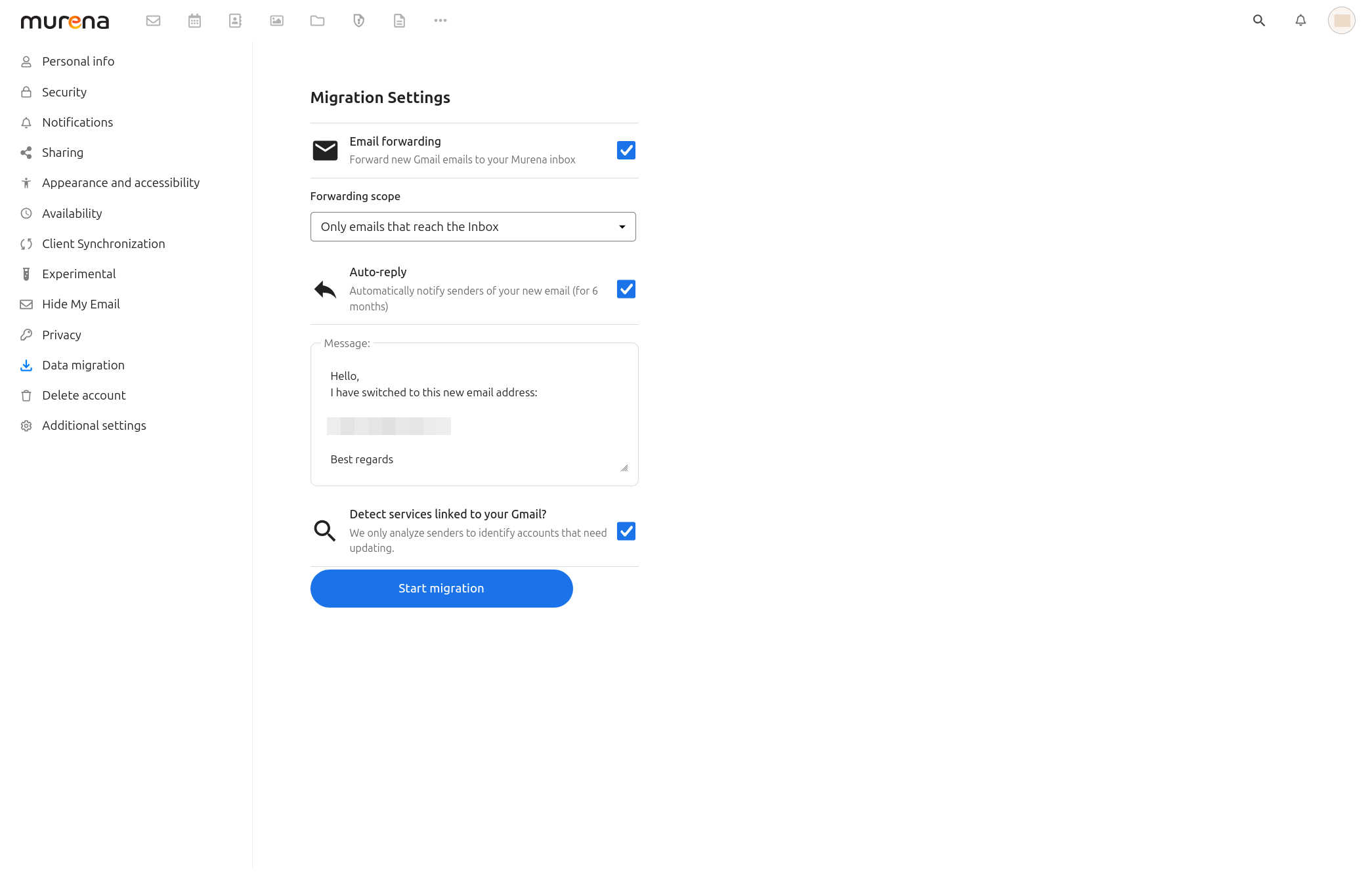
Review these settings before you launch the migration. Disable the options you do not need.
Expected behavior:
- Gmail emails are copied into your Murena mailbox
- labels are mapped to folders
- the migration interface shows progress while the import runs
Set up forwarding
Forwarding is useful if you want new Gmail messages to keep arriving in your Murena inbox while you update your accounts and contacts.
Recommended flow:
- Enable forwarding in the migration settings if you want new Gmail messages to arrive in Murena.
- Review the helper screen that explains the Gmail configuration steps.
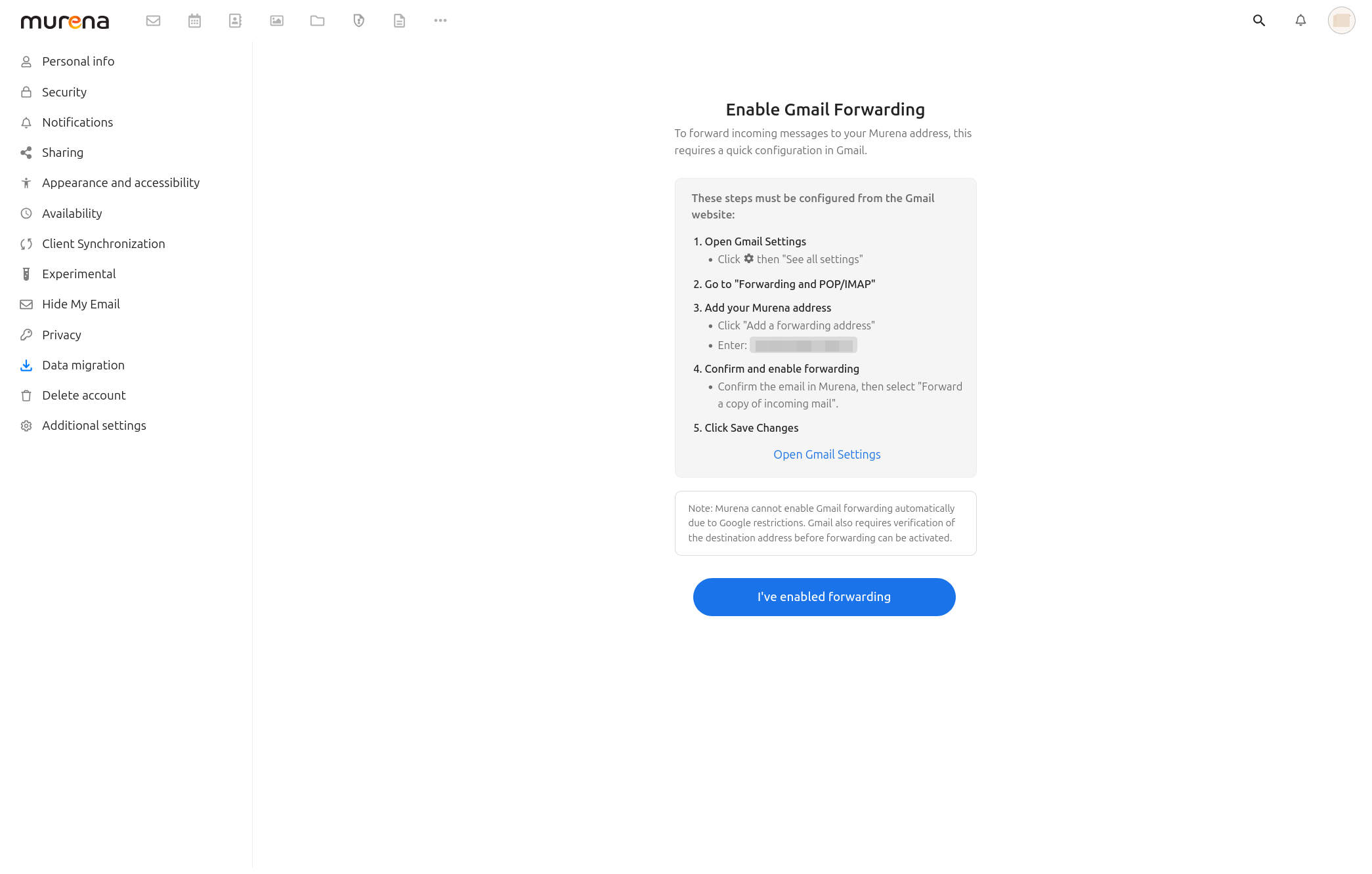
- Open Gmail settings from a desktop or laptop browser.
- Add the Murena forwarding address.
- Confirm the forwarding address when Gmail sends the verification email.
- Save the Gmail forwarding settings, then return to Murena.
Set up auto-reply
If you want to notify senders about your new Murena address:
- Tick the Gmail auto-reply option offered by the migration assistant.
- Review the pre-filled message.
- Replace the suggested text if needed, then proceed with the next migration step (
Detect services linked to your Gmailor theStart migrationbutton). - By default, the auto-reply message is set to last 6 months. If this doesn’t work for you, you can change it in Gmail settings after completing this step in the migration assistant. We recommend keeping the message active long enough for your regular contacts to notice and adjust.
Detect and review services linked to your Gmail account
The migration assistant can scan your Gmail inbox to identify important services that use your Gmail address, such as banks, subscriptions, utilities, tax services, mobile carriers, or online shops. If you want to make Murena Workspace your main email address, this can help you know where to request changes.
Use this list as a checklist, not as a fully automatic guarantee:
- review the detected services one by one
- update the email address on each service website when possible
- keep your Gmail mailbox active until the critical services have been updated
Imported Google data
After the migration completes, verify the imported data in the relevant Murena apps:
- Contacts in Murena Workspace Contacts
- Calendars in Murena Workspace Calendar
- Drive files in Murena Workspace Files
- Gmail emails in Murena Mail if email import was enabled
If you used the Gmail-specific options, also verify the mail-related results:
- Open your Murena inbox and confirm that the imported mailbox content is visible.
- Send a test email to your Gmail address and:
- confirm it reaches your Murena inbox if forwarding is enabled.
- check you’ve received the auto-reply message if you enabled it.
- Review the detected services list and note which accounts need to be updated with your Murena Workspace email address.
FAQ
What should I do if I do not have enough storage?
If you plan to import Gmail emails, it is a good idea to check your available Murena Workspace storage in advance and upgrade your plan if needed. You can review available options on the Murena Cloud subscriptions page.
If you continue without enough space, the migration flow will perform its own storage check. If there is not enough storage, it will warn you and offer you to subscribe to a plan so you can continue the migration with more space.
Why do I need a computer for Gmail forwarding?
Gmail does not allow you to change forwarding settings from mobile devices, whether you’re using the Gmail app or a mobile browser. To update your forwarding settings, you must log in to Gmail in a browser on a desktop or laptop computer.
What if Gmail migration options are not available in the migration flow?
Some Gmail migration options can be unavailable if Murena Mail is not yet fully configured for your account. If the mail import, forwarding, or mailbox-related steps do not appear, wait until your Murena Workspace mail account is fully ready, then try again later.
What if the migration takes a long time?
Large imports can take time. If you find the migration too long, you can let it run in the background and revisit the page later to check the imported data. If you’re not satisfied with the result, you can restart the migration or re-run specific steps.
What should I do if a Gmail step appears but does not complete correctly?
First, check the imported data and the Gmail-related verification points. If the option was available but the result is incomplete, confirm what was imported or enabled before restarting the whole migration.
Is there a manual fallback for contacts?
Yes. If needed, you can export a .vcf file from Google Contacts and import it manually into Murena Workspace Contacts.