
Add a gmail account
EditPurpose of this guide
Use this guide if you want to keep using a Gmail or Google account on your /e/OS smartphone without importing that data into Murena Workspace.
What this guide helps you do
- Access your Google email, contacts, and calendars from
/e/OS Mail,/e/OS Contacts, and/e/OS Calendar.
Tradeoff
- By connecting a Google account to your device, you are still relying on Google services and permissions.
Recommendation
- Add a Google account only if you need ongoing access to Google services on your phone.
- If you want to import your data into the Murena ecosystem instead, use the Google migration guide.
Add a Google account to your smartphone
Open
Settingsfrom the home screen.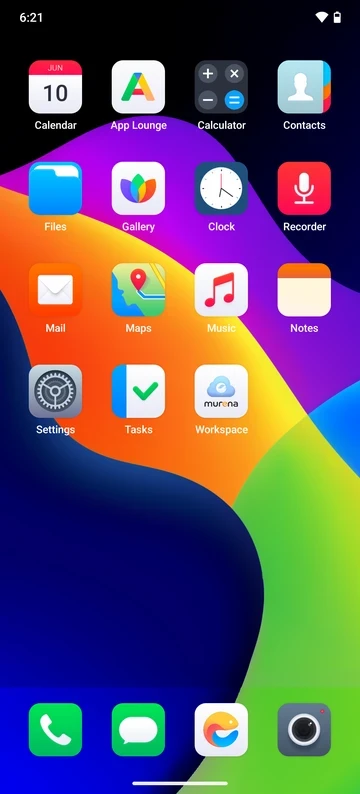
Open
Accounts.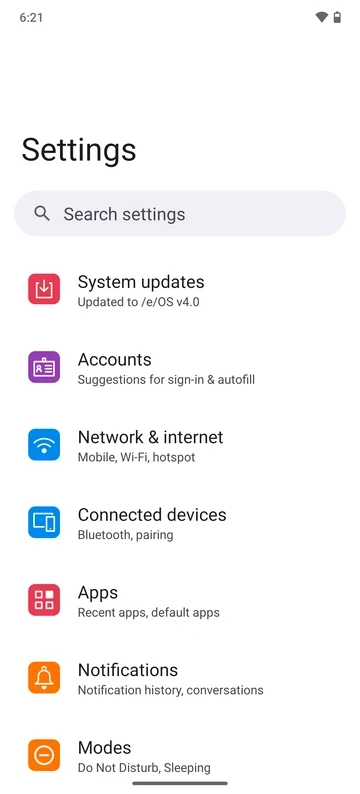
In the
Accountsscreen, tapAdd account.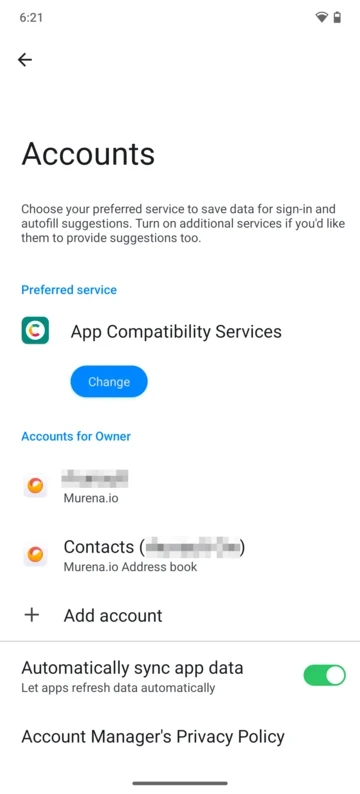
In the
Add accountlist, selectGoogle.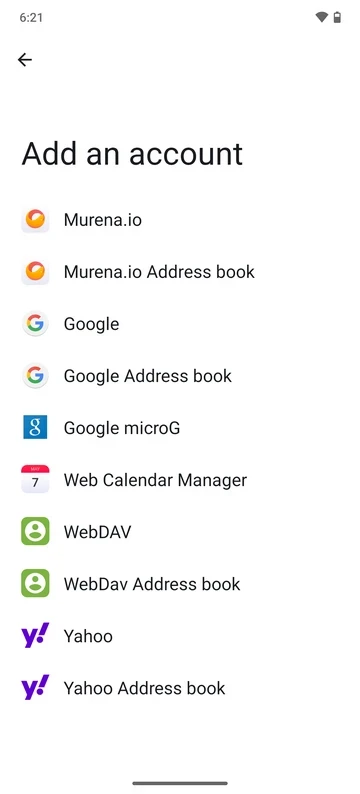
A warning explains that Murena reports a fake device model to Google to reduce tracking. Tap
OKto continue.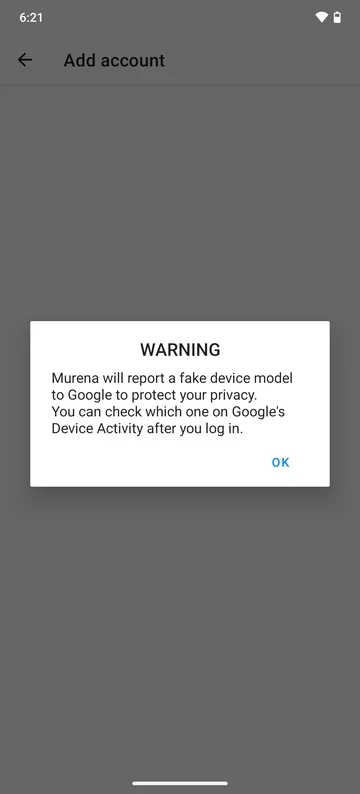
The browser opens Google’s sign-in page. Sign in with your Google account.
- If Google asks for a password or 2-step verification, complete those steps on the screens it provides.
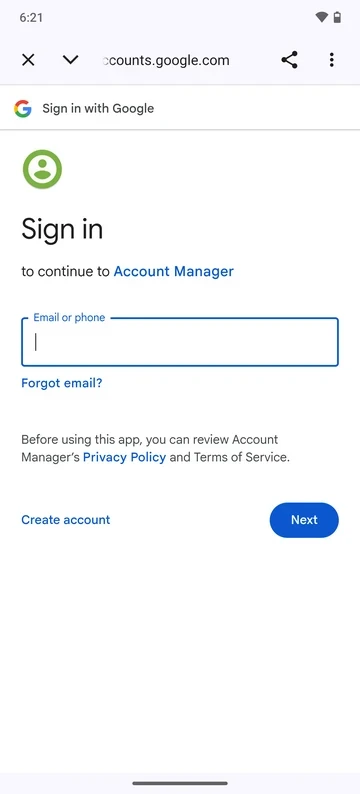
Google then shows the permissions requested by Account Manager. Review them carefully.
Select the Google services you want to allow on the device, then continue.
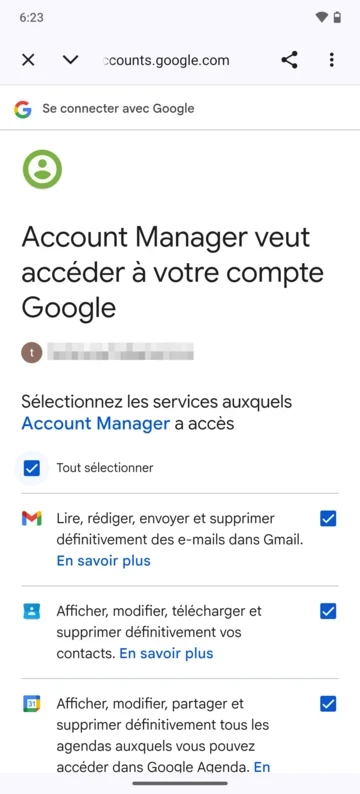
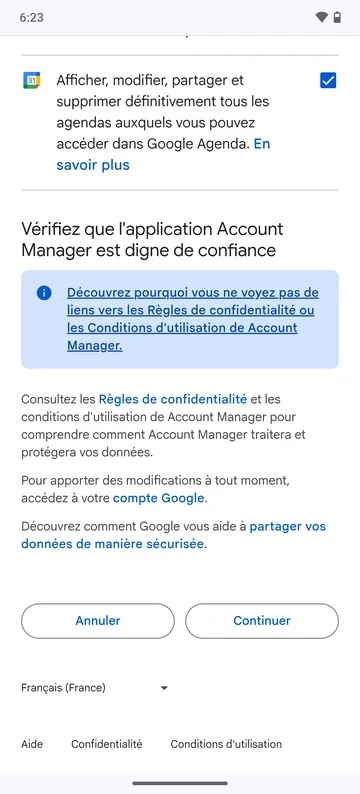
When the flow returns to /e/OS, open
Settings>Accountsagain and confirm that your Google account is listed.After the sync has had time to complete, the available Google data will appear in the matching
/e/OSapps, depending on what you allowed during setup:- Gmail will be available in
/e/OS Mail - Google calendars will be available in
/e/OS Calendar - Google contacts will be available in
/e/OS Contacts
- Gmail will be available in
You can review or change the sync settings later in
Settings>Accounts> your Google account >Account sync.
Remove the Google account
You can remove the Google account later if you no longer want to use it on /e/OS.
- Open
Settings. - Open
Accounts. - Select the Google account you want to remove.
- Tap
Remove account.
This removes the Google account from the device. You can add it again later if needed.