
Parental Control
Edit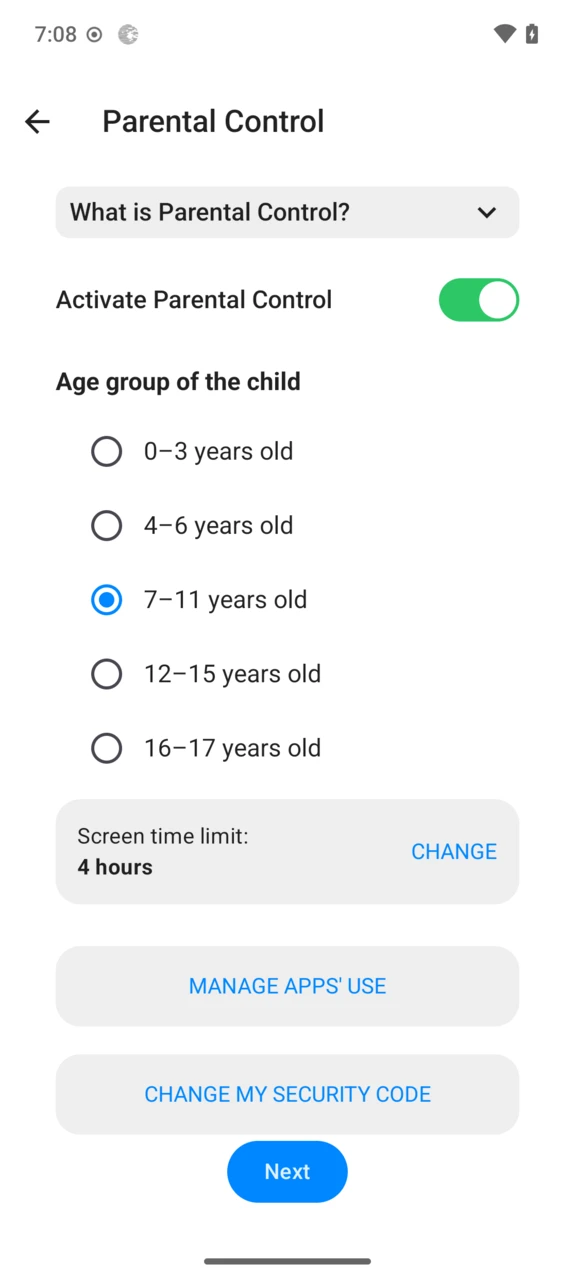
Parental Control lets parents protect children from inappropriate content and limit screen usage: it restricts mobile applications and web content depending on the child’s age, and enforces a daily screen-time limit.
Why it matters
- Screen time: overexposure can affect children’s sleep, vision and development — monitoring and limiting daily usage helps.
- Inappropriate content: blocking non-family-friendly apps and websites limits exposure to adult, violent or otherwise unsuitable content.
- Online harassment: educating kids about online safety, monitoring their activity and keeping communication open reduces real risks.
- Parental Control is a tool in that conversation — not a replacement for it: talk with your child about navigating the digital space safely.
Before you start
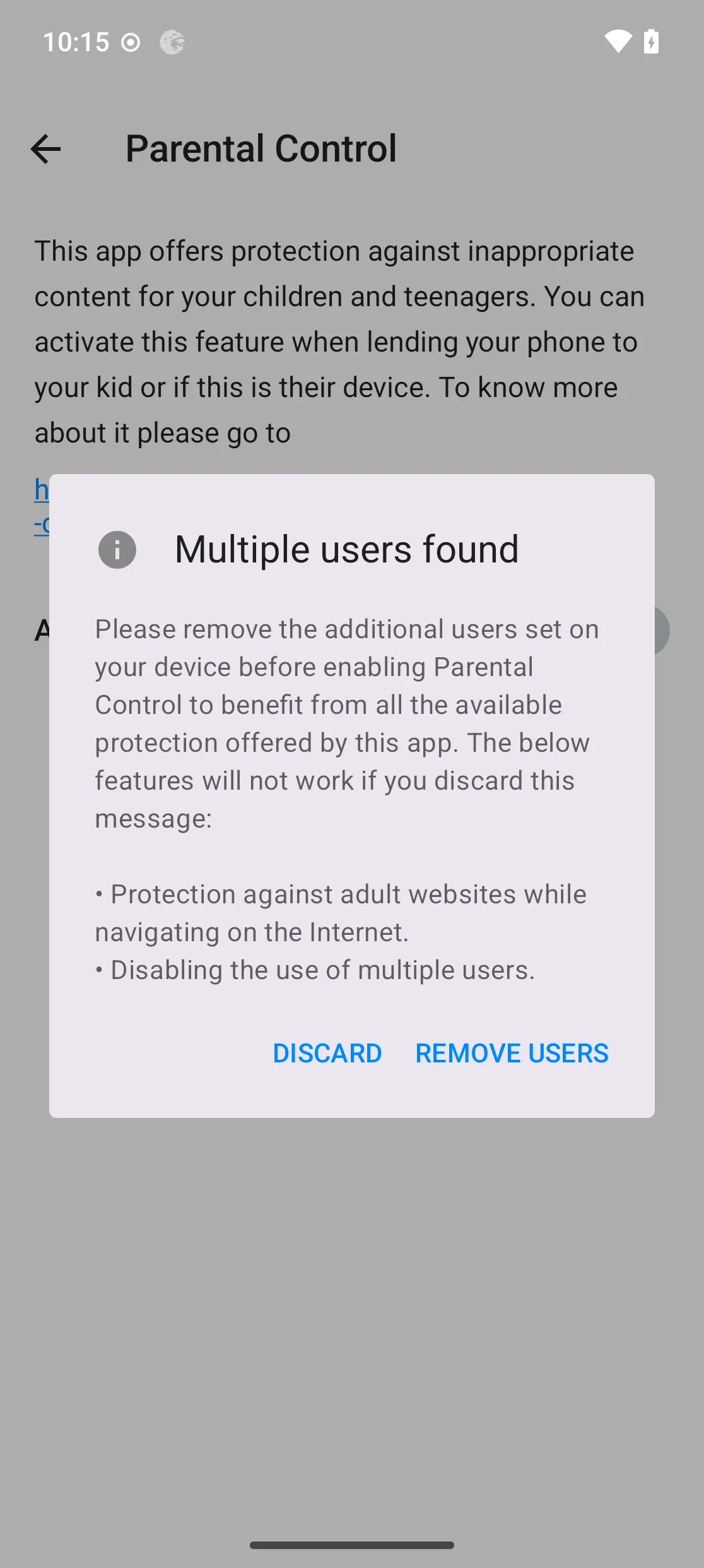
Single user. Parental restrictions such as the family-safe DNS can be bypassed in a multi-user setup; remove extra users when asked.
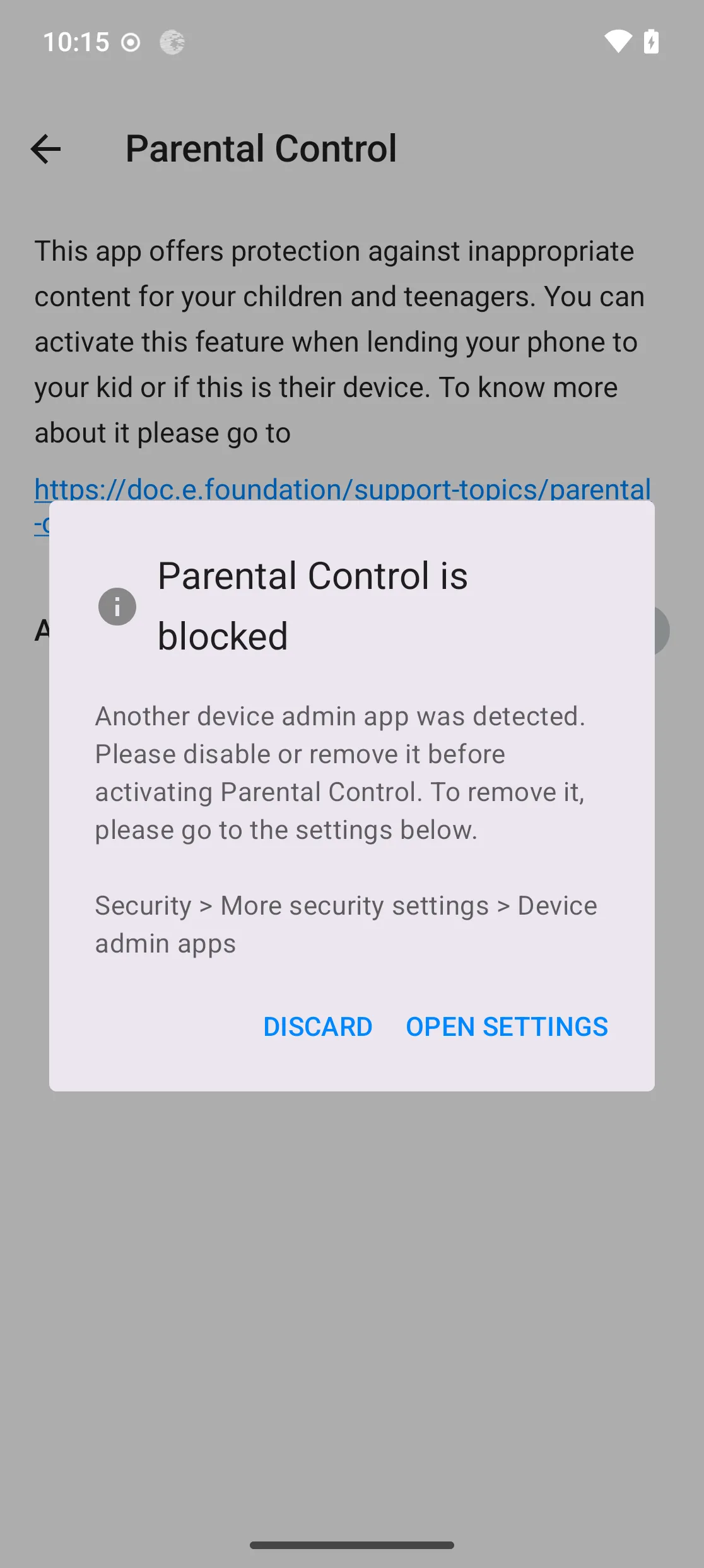
No other admin app. Parental Control cannot be set up while another admin app (like Shelter) is in use — deactivate or uninstall it first.
Sign in to App Lounge. Content-rating enforcement relies on data from App Lounge, so you must be signed in — the free Anonymous mode is enough. Until you sign in, only the preinstalled /e/OS apps can be launched.
Activate Parental Control
Parental Control can be activated during the phone’s first-time setup wizard, or at any moment from Settings → Parental Control.
Open the system settings, scroll down and tap
Parental Control.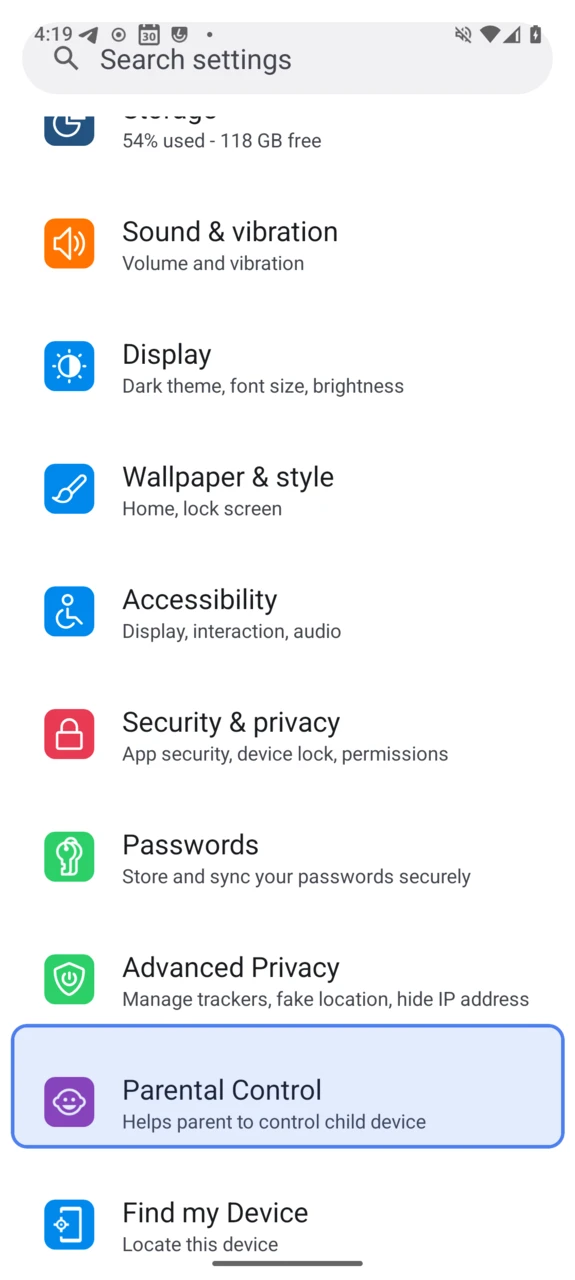
Toggle
Activate Parental Control.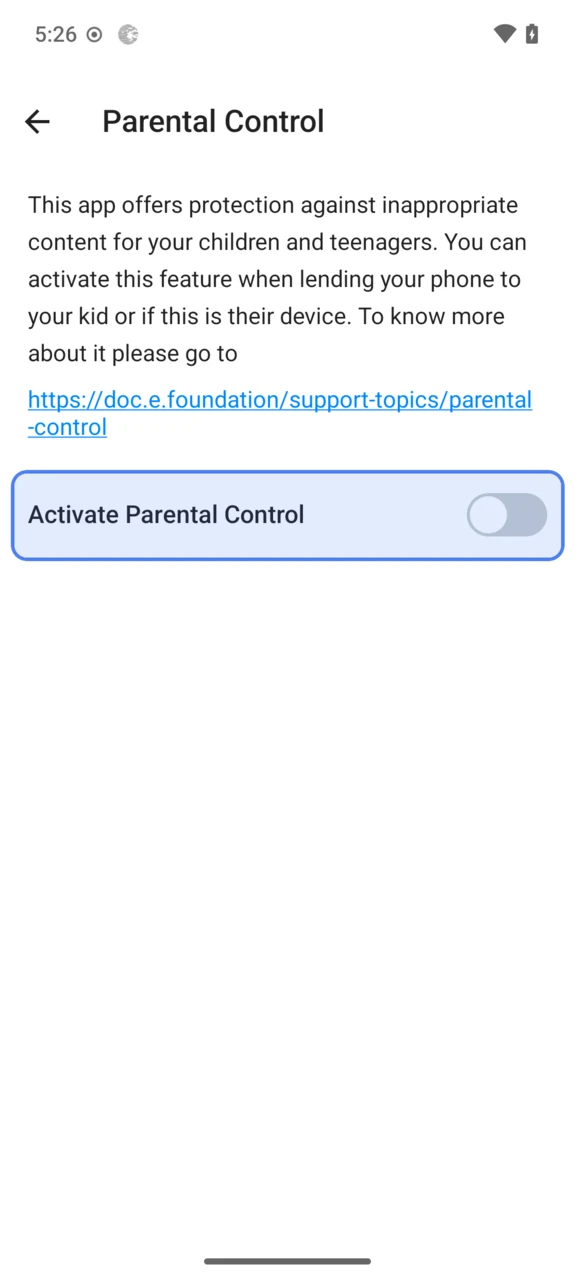
Select the
Age group of the childand tapNext.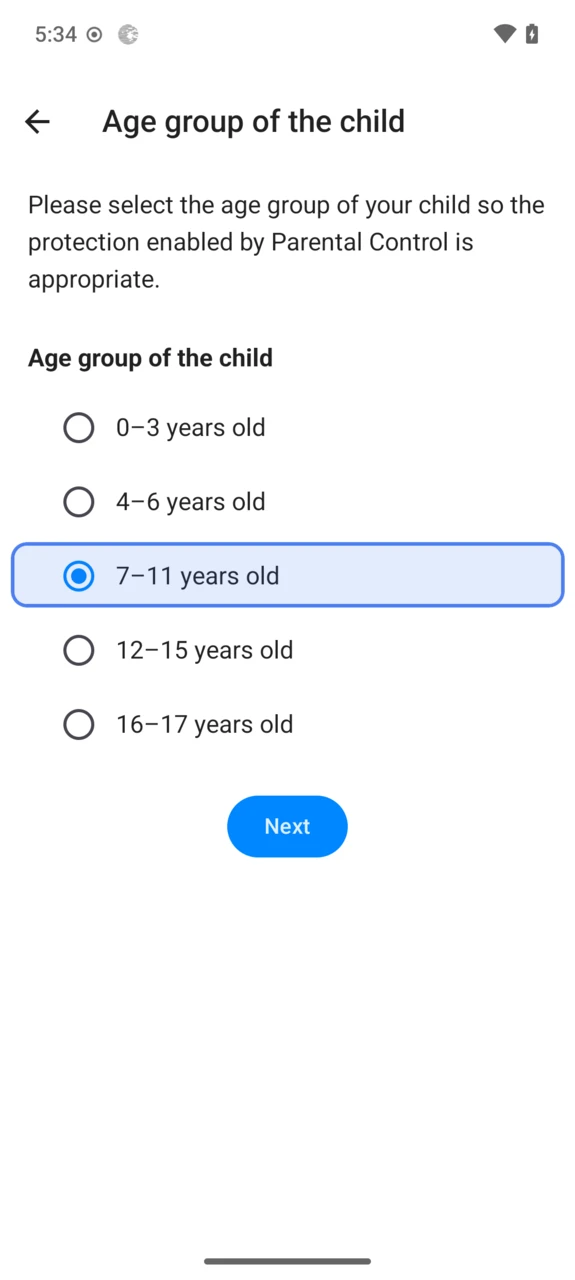
Set a daily screen-time limit with the slider — recommendations per age group are shown below it — or tap
Skipfor no limit.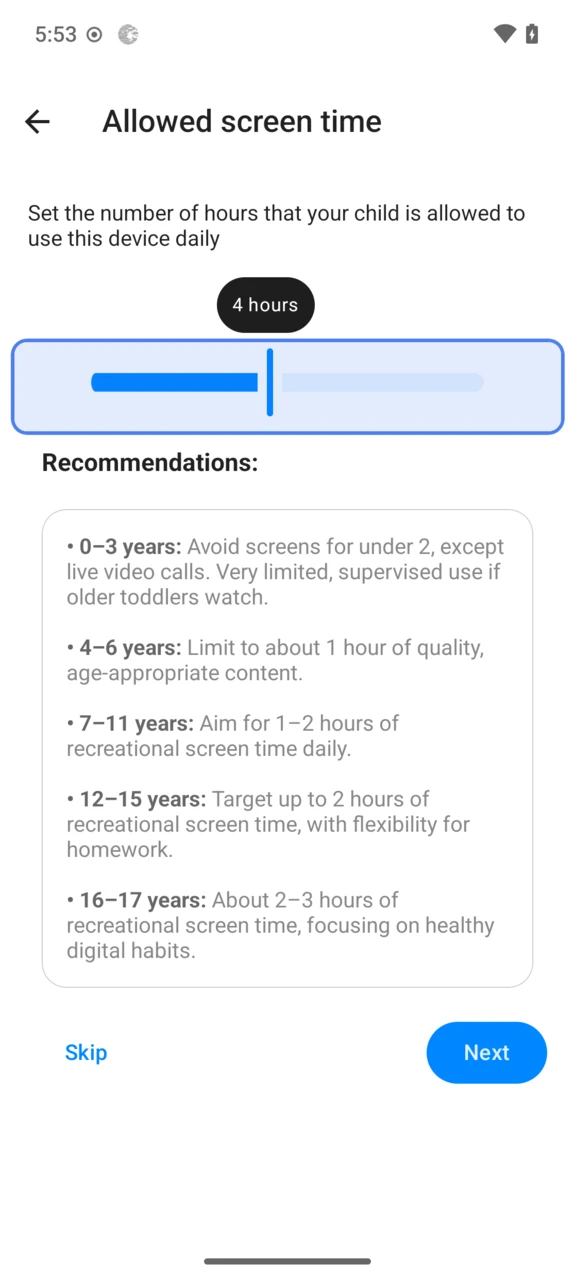
Choose when your security code is needed: only for apps rated
Parental Guidance(other apps follow the age rating), or for any app installation.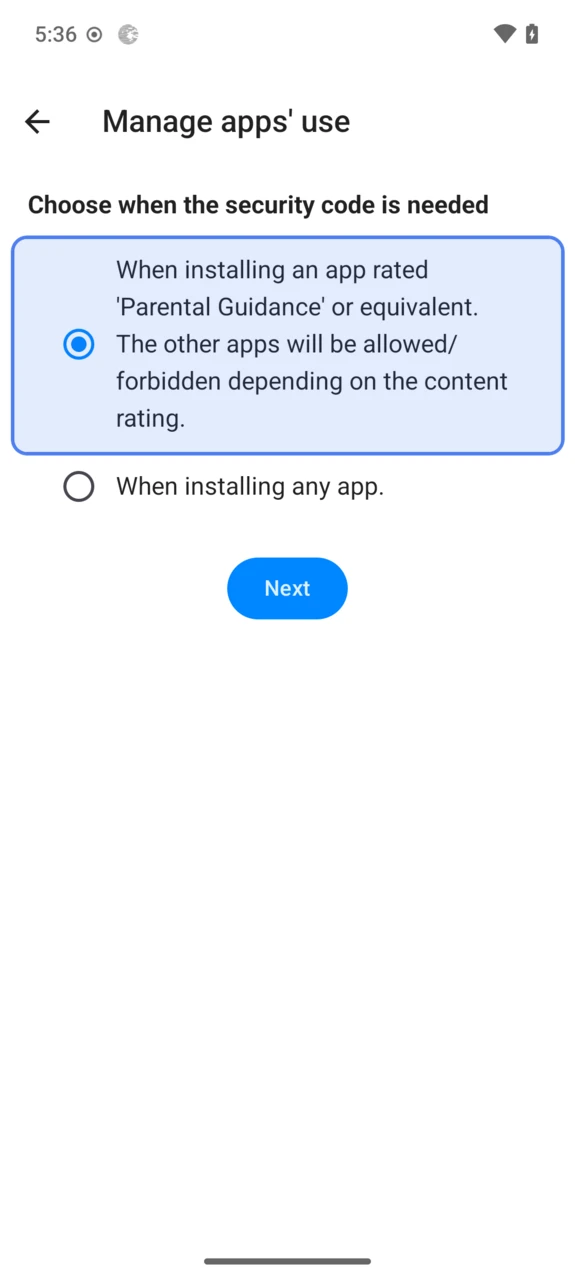
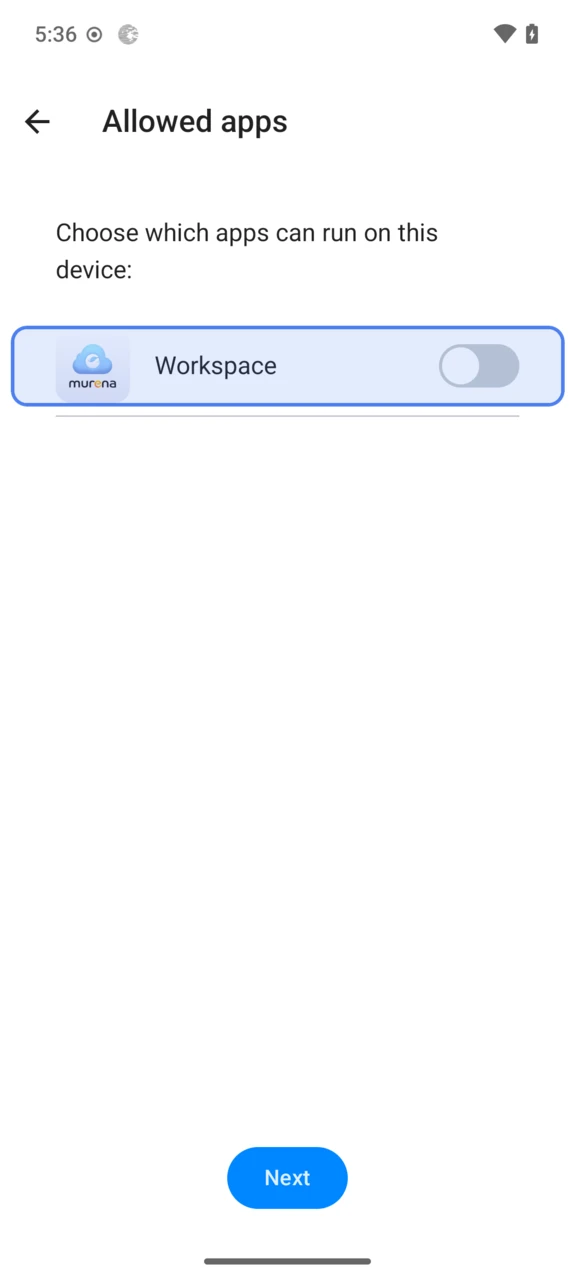
Toggle on the already-installed apps your child is allowed to run.
Choose between a
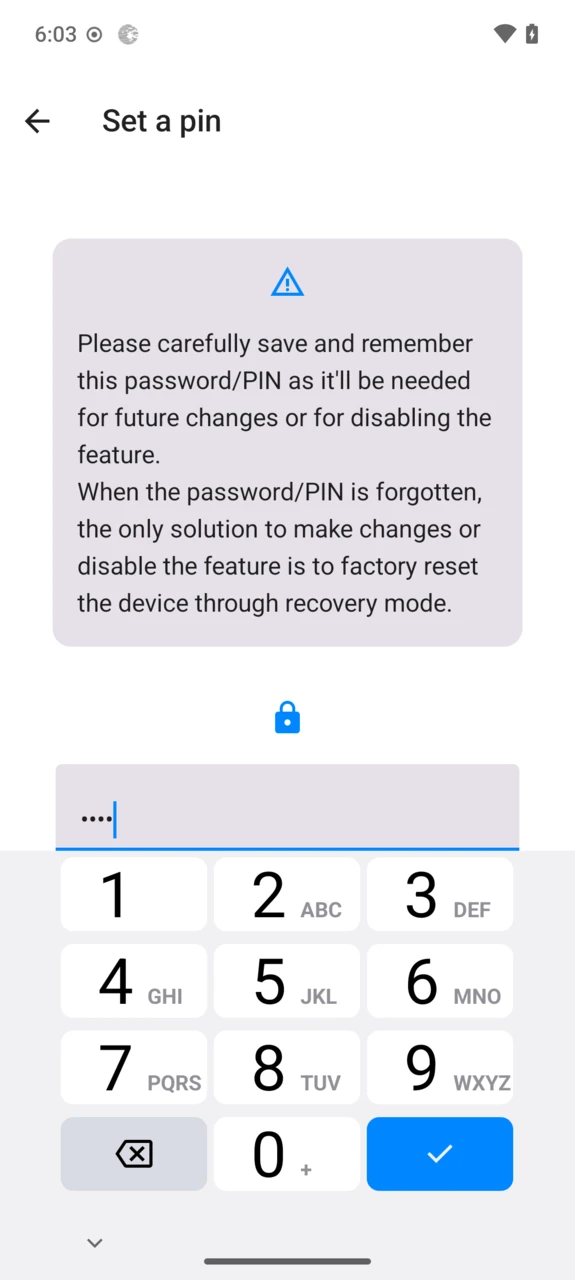
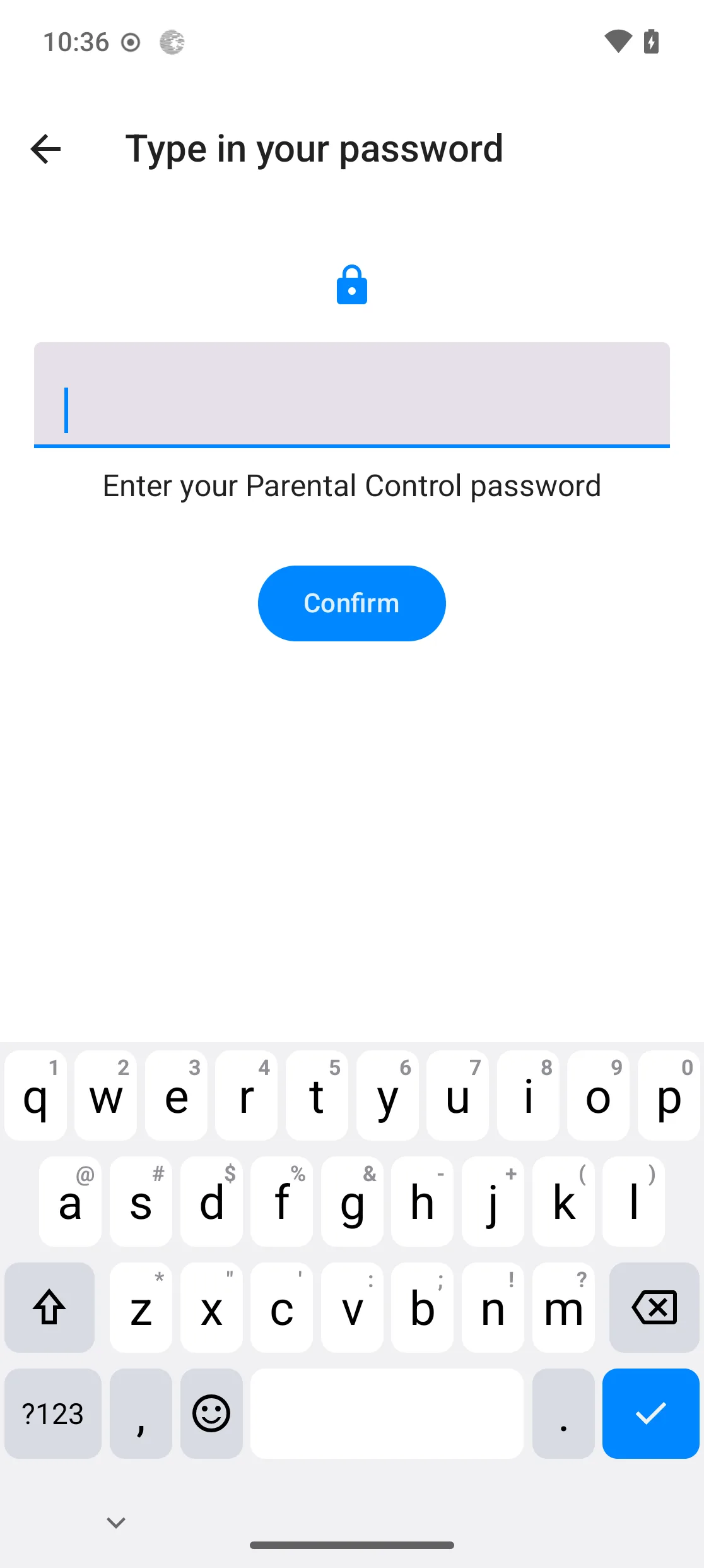
PINand aPassword. It will be required to change or disable Parental Control — your child should not know it.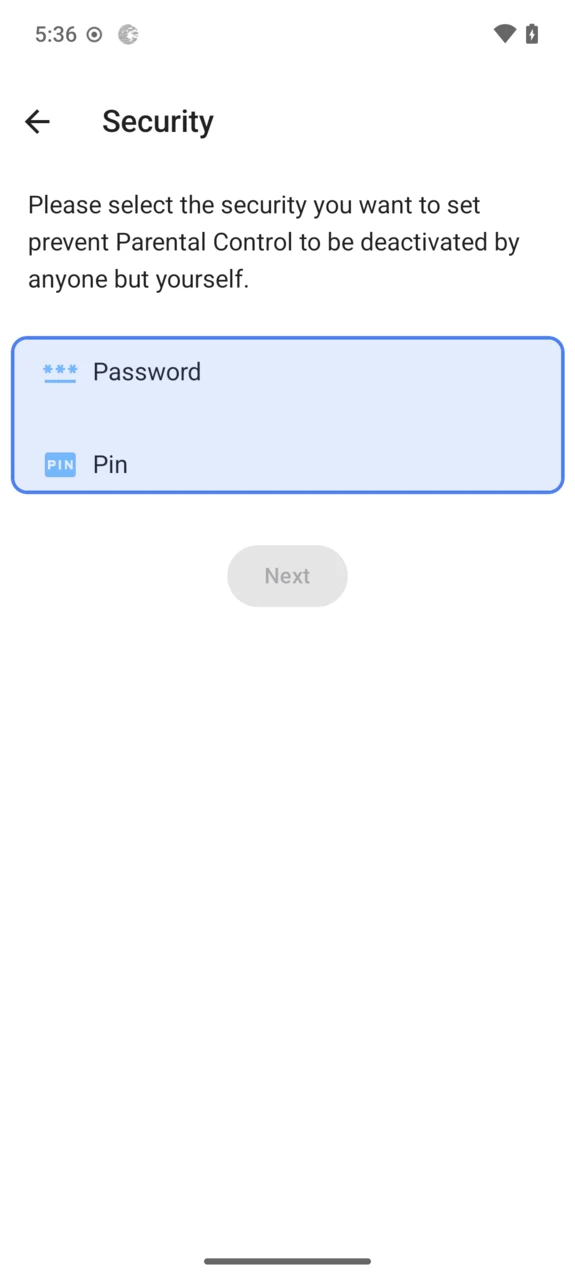
Enter your code and confirm it to finish the activation.
Parental Control is now active. From this screen you can change the age group, the screen-time limit, the allowed apps or the security code at any time — after entering your PIN/password.
Restrictions applied when Parental Control is on
Family-safe DNS. DNS queries are intercepted on the device to deny access to adult websites and block trackers. Private DNS is forced to Mullvad DNS All (DNS0 Kids as a fallback if Mullvad is unreachable), re-applied on every reconnection, and cannot be changed.
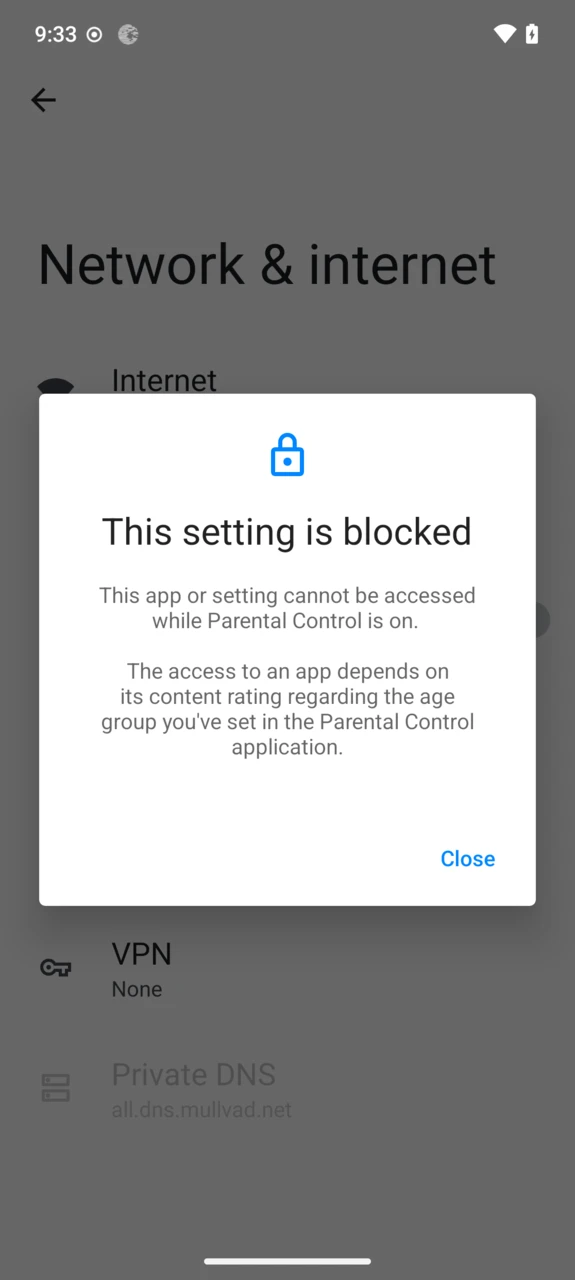
App installs go through App Lounge only, which serves apps from Google Play and F-Droid. Sideloading APKs from unknown sources is disabled.
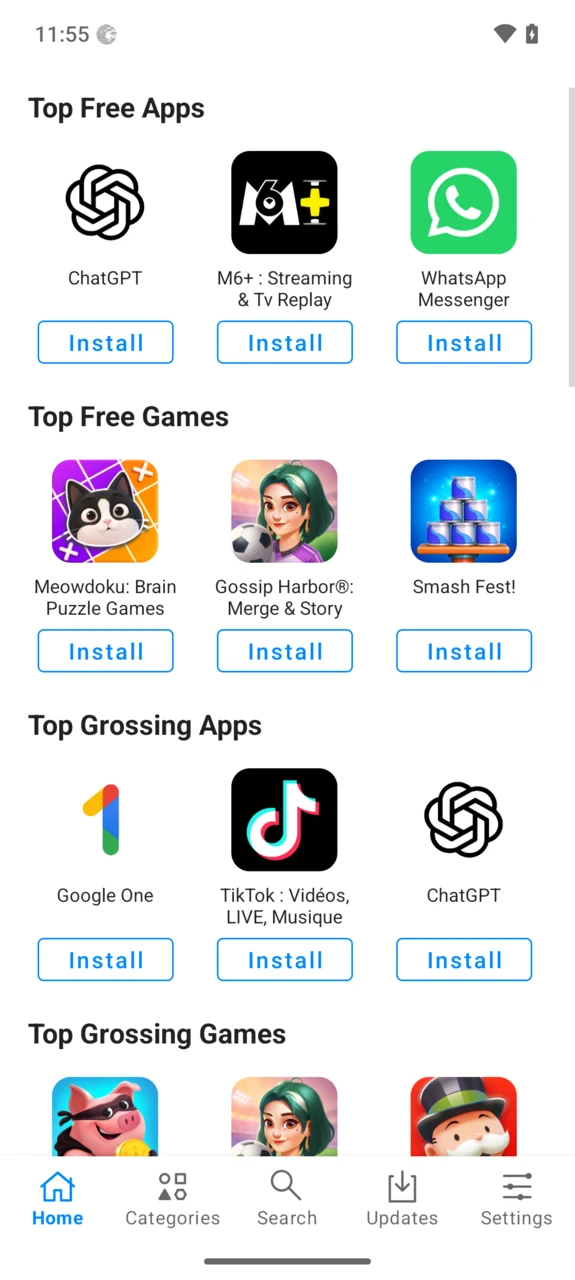
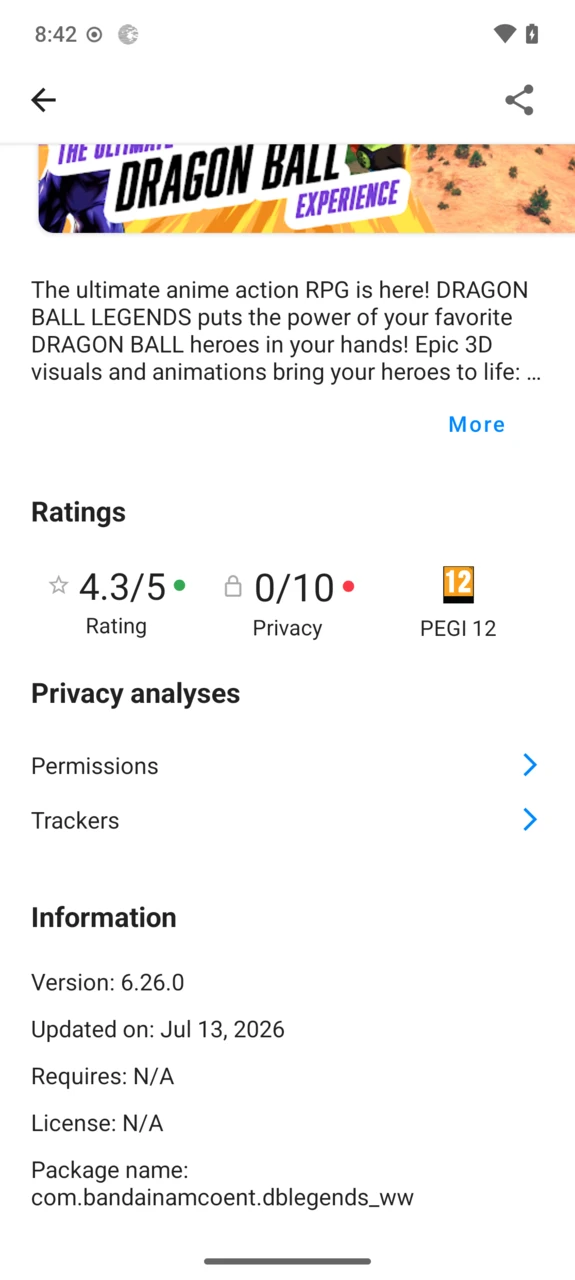
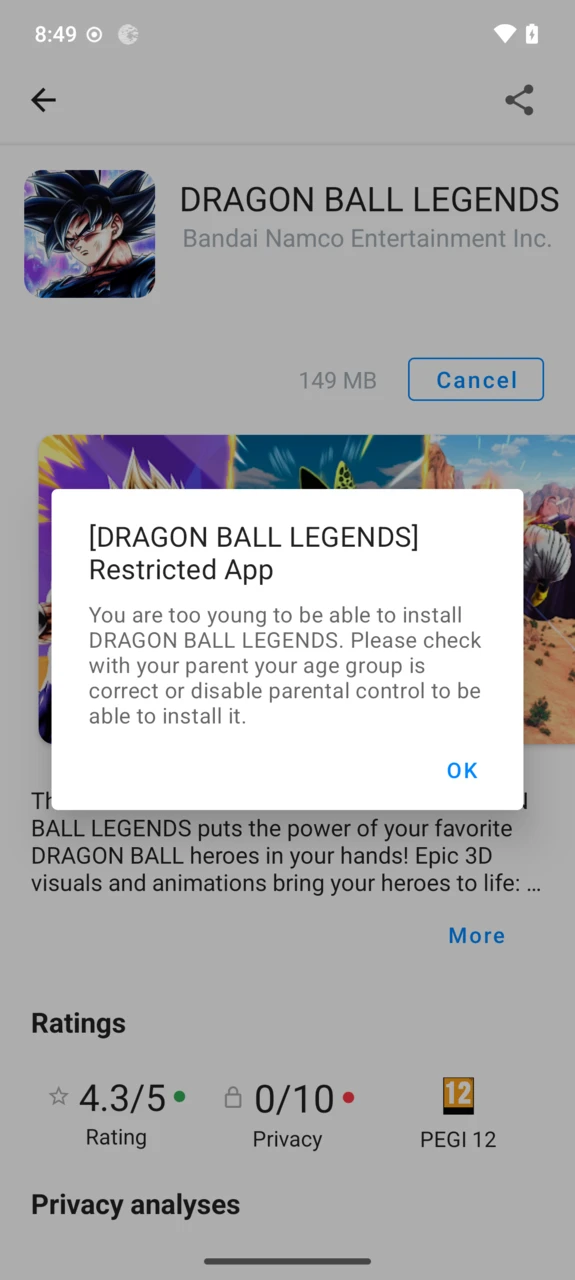
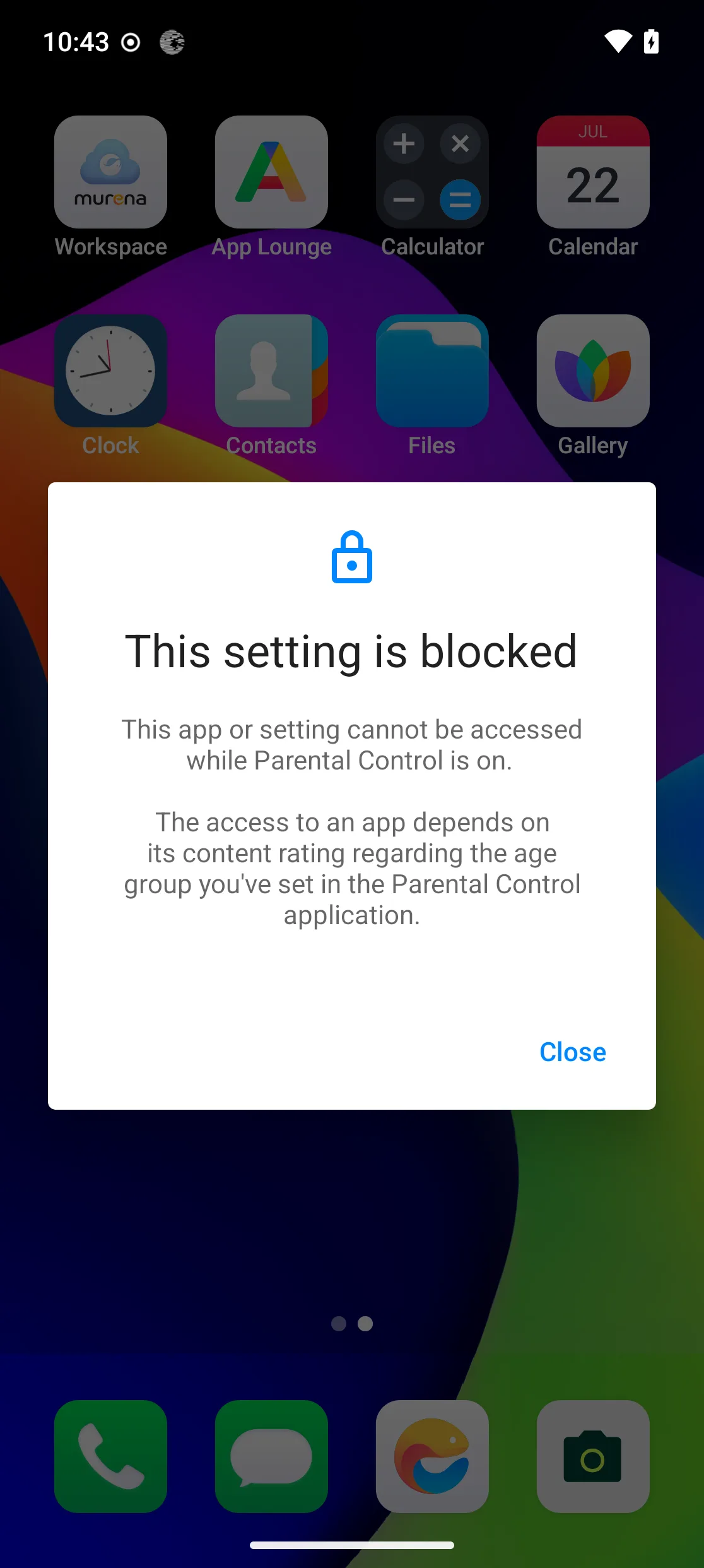
Age ratings are enforced. An app can only be installed if its content rating — shown on its App Lounge page, published by Google Play or F-Droid — matches the age group. An app rated above it is refused: “You are too young to be able to install…”, unless you approve it with your PIN/password.
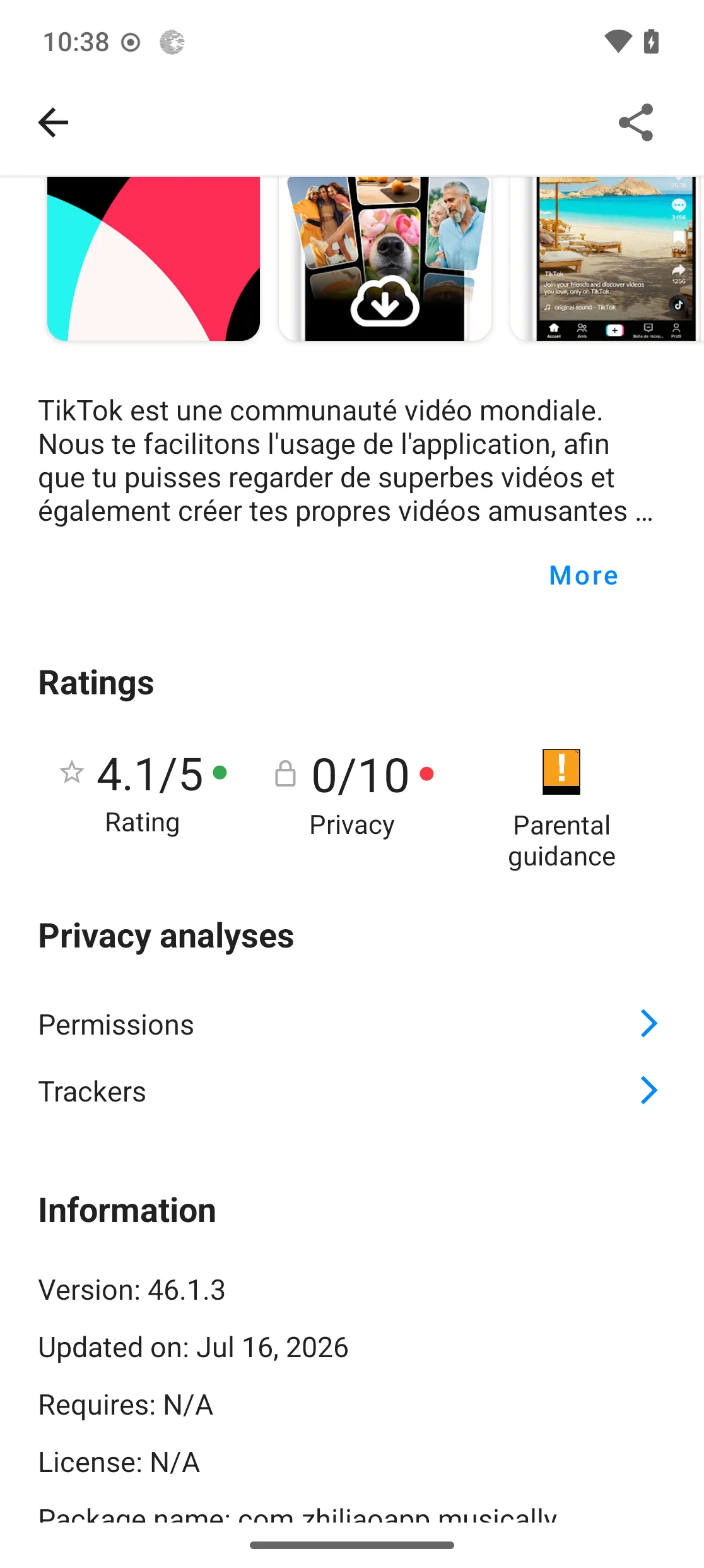
Parental-guidance apps need your approval: entering the parent PIN/password is required to install them.
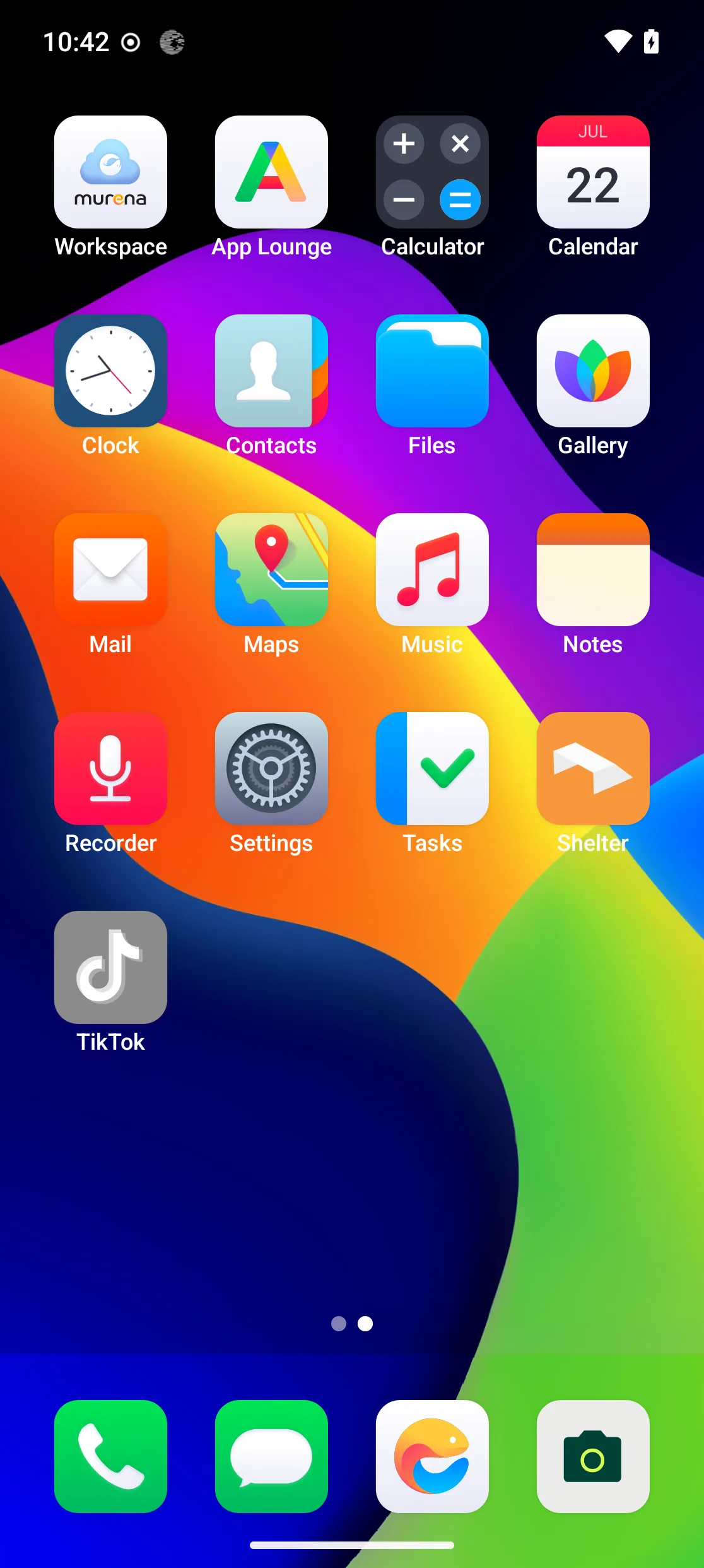
Over-age apps are disabled. Already-installed apps rated above the configured age are toggled off and cannot be launched — you can re-enable one explicitly if you wish.
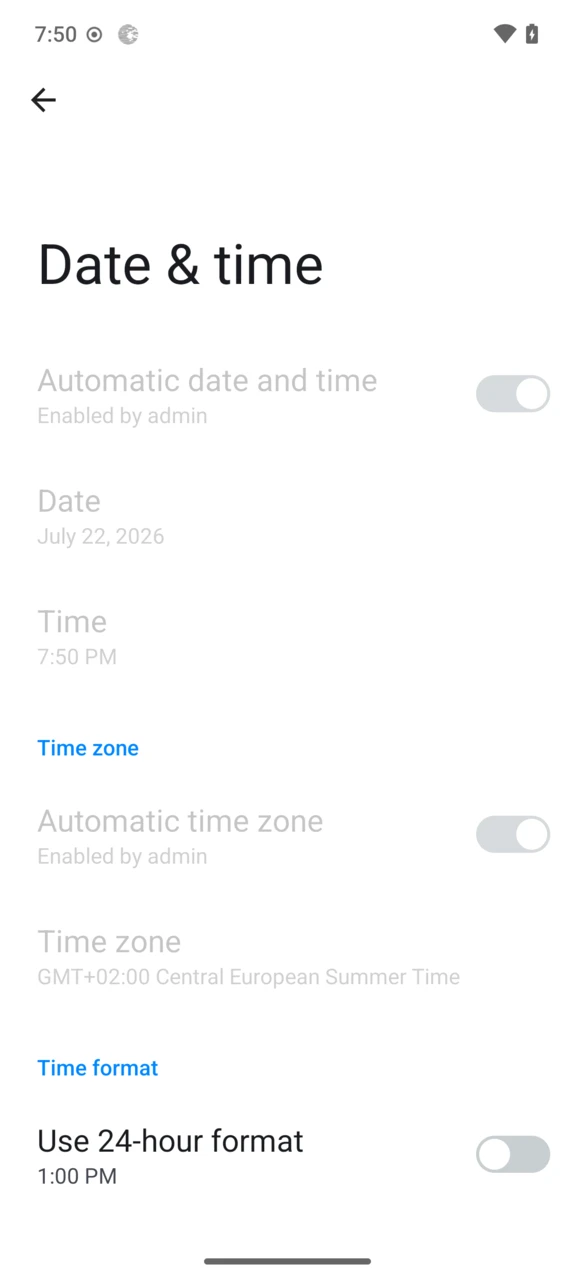
Date and time are locked so the clock cannot be changed to defeat the screen-time limit.
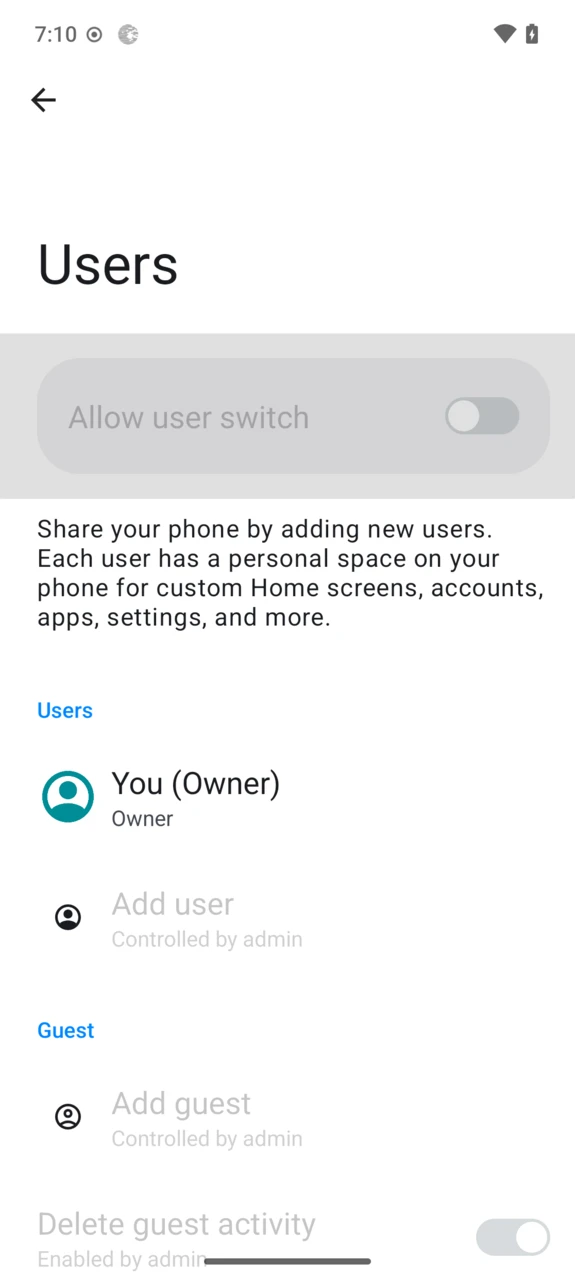
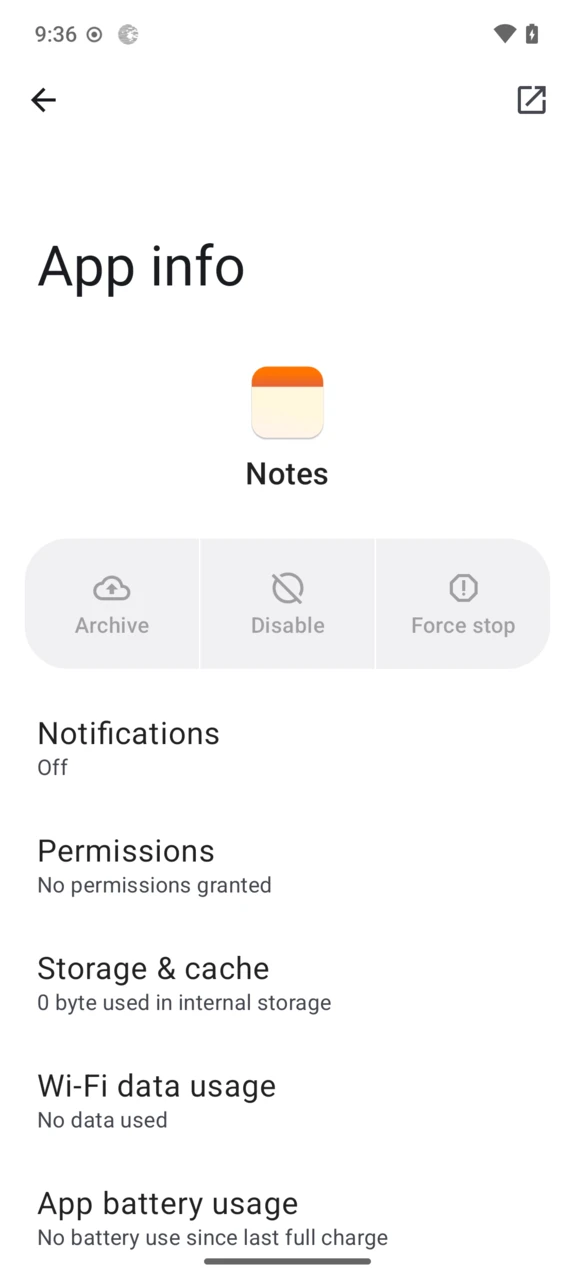
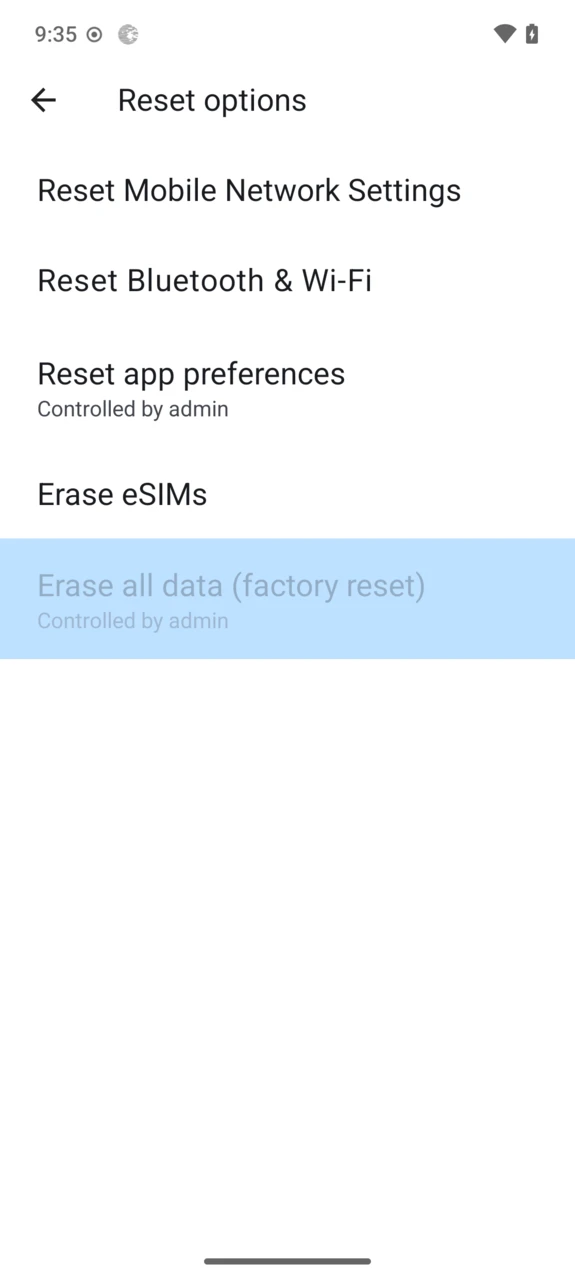
The device is locked down: your child cannot add, switch or remove users, Clear data / Clear cache / Force stop are disabled for all apps, USB debugging is turned off, and the device cannot be factory reset.
The daily screen-time limit
/e/OS counts usage from midnight and shows the running total on the Parental Control screen.
- Some usage does not count towards the countdown: the Phone/Dialer app, the Settings app, and time the screen stays on while the device is locked are excluded.
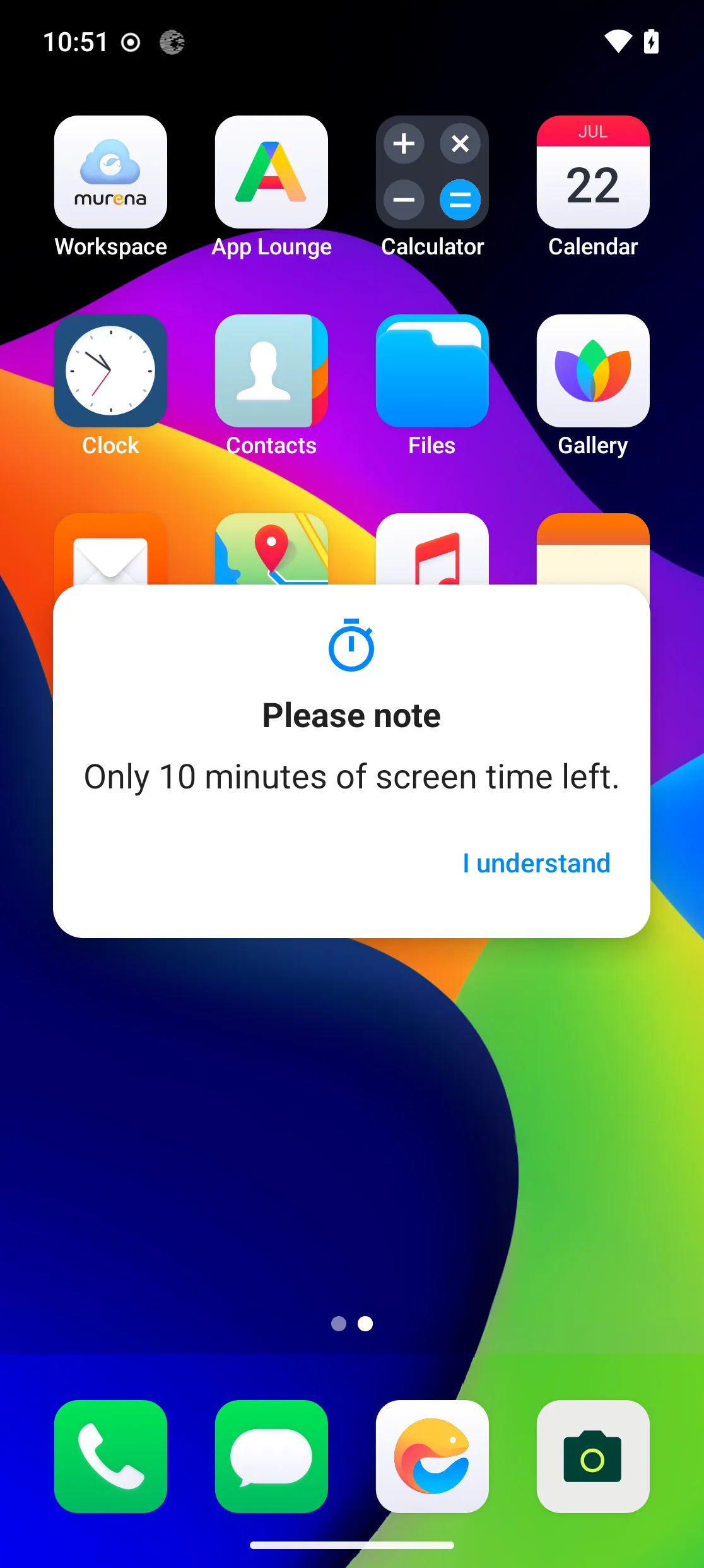
- Ten minutes before the limit is reached, a warning is displayed so your child can wrap up.
- When the limit is reached, every app is blocked except a set of essentials — Phone, Messages, Contacts, Clock, Calculator, Calendar, Maps, Music, Recorder, Weather and Settings. Opening a blocked app shows “Your screen time is over for today. You will be able to access this application again tomorrow.”, and installing new apps is disabled until the next day.
- Access returns automatically at midnight — no parent action is needed.
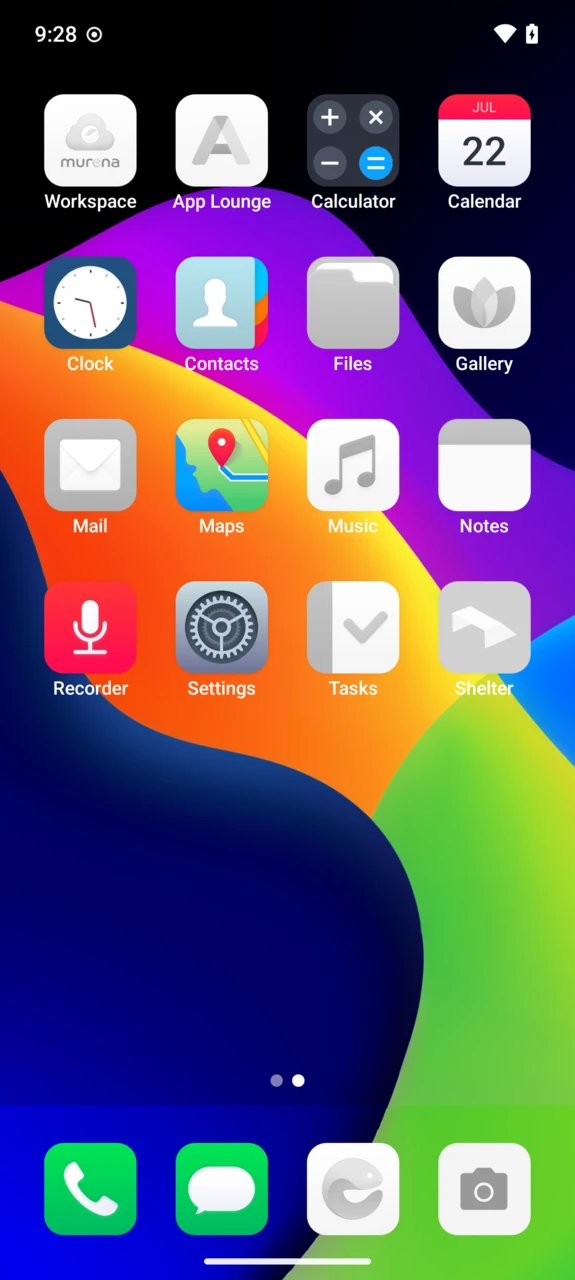
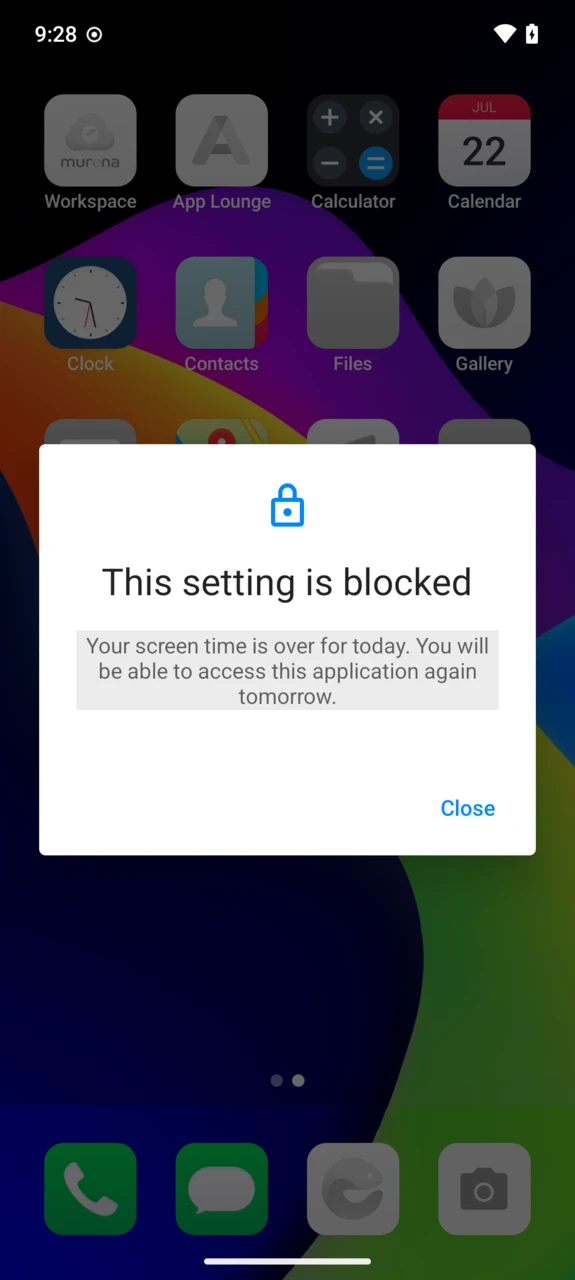
Setting the limit to No screen time blocks all non-essential apps at all times, with the message “You’re not allowed any screen time. If you disagree please negotiate with your parents ;)”.
Skipping the limit configuration during setup means there is no screen-time restriction at all.
Managing Parental Control after activation
Everything can be adjusted later from the Parental Control screen. Each change — including disabling Parental Control — first asks for the PIN/password set during activation:
- Change the age group — over-age apps are re-evaluated immediately.
- Change the daily screen-time limit with the
Changelink. - Manage apps’ use — switch between “code needed only for Parental-Guidance apps” and “code needed for any install”, and edit the list of allowed apps.
- Change my security code — set a new PIN or password.
- Disable Parental Control.